Task sync
Bring issues, tasks and cards from Jira, Asana, Linear, GitHub, Trello, ClickUp and monday.com to your agents, and write progress back.
Task sync turns the work people track in another tool into tasks for your agents. Items that match a sync's filter become tasks. The tracker keeps the title, description, priority, labels and due date; Everdeck updates the status and posts finished results back. Company admins set syncs up on the Task sync page, and each sync runs only on the connection you choose for it.
Everdeck syncs with Jira, Asana, Linear, GitHub, Trello, ClickUp and monday.com. Each tracker has its own word for an item (an issue, a task, a card or an item), and the page uses it. One sync covers one set of statuses: one Jira site's projects, one Asana project, some Linear teams, some GitHub repositories, one Trello board, some ClickUp lists or one monday.com board. The sections at the end of this guide say what is different about each tracker.
Before you start
Connect the tracker to the company first: see its setup guide and Connecting apps. Connect it with an account used only by Everdeck. Changes and comments made by that account count as Everdeck's own, so they aren't imported again, and items it created are left out unless you choose otherwise.
Set up a sync
- Open Task sync and select Add sync.
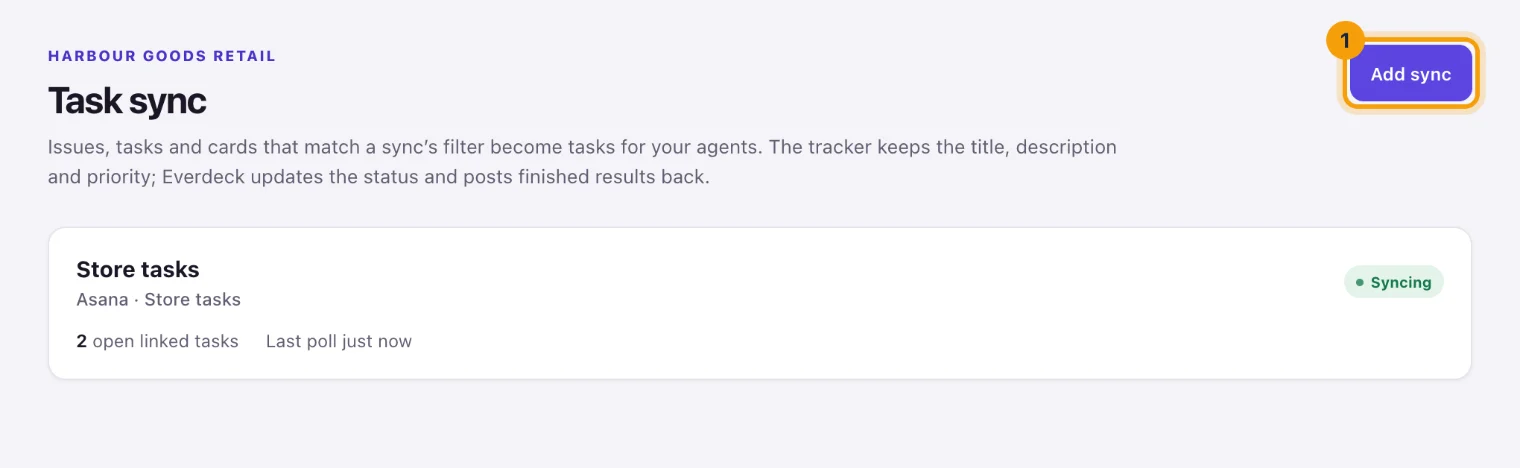
Task sync: each sync, its connection and its health. - Under Choose a connection, select the connection the sync reads and writes through. Only working
connections are listed; a tracker you haven't connected yet has a link to connect it.
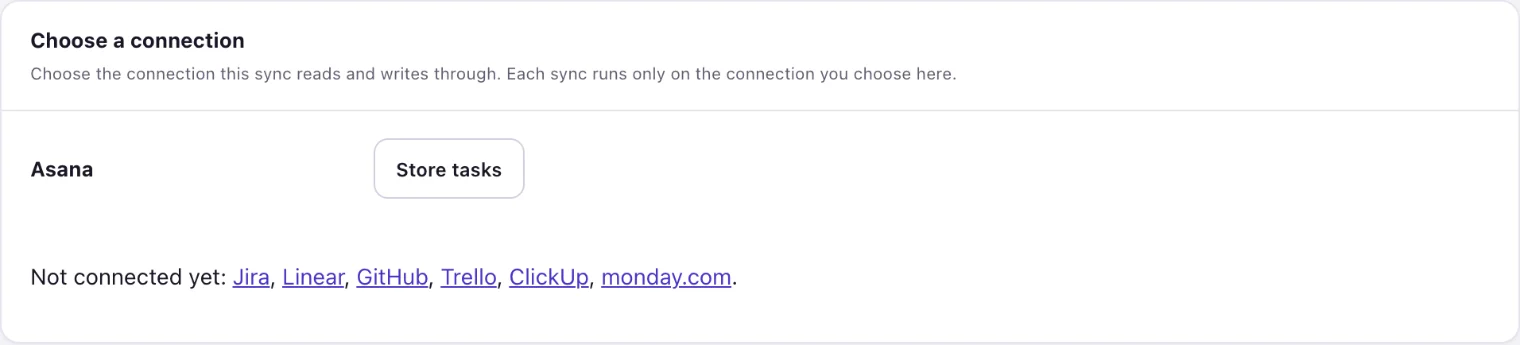
Each sync runs only on the connection you choose here. - On the Setup form, give the sync a Name, check the Connection, and choose what to sync.
The fields are the tracker's own: for Asana, a workspace, a project, and optionally some sections and
a tag. Lists to choose from are read from the tracker through the connection, and a list that depends
on another (a project's sections) fills in once you choose that one. Where there's only one choice,
it's chosen for you. Select Test filter to see the first items the sync would bring in.
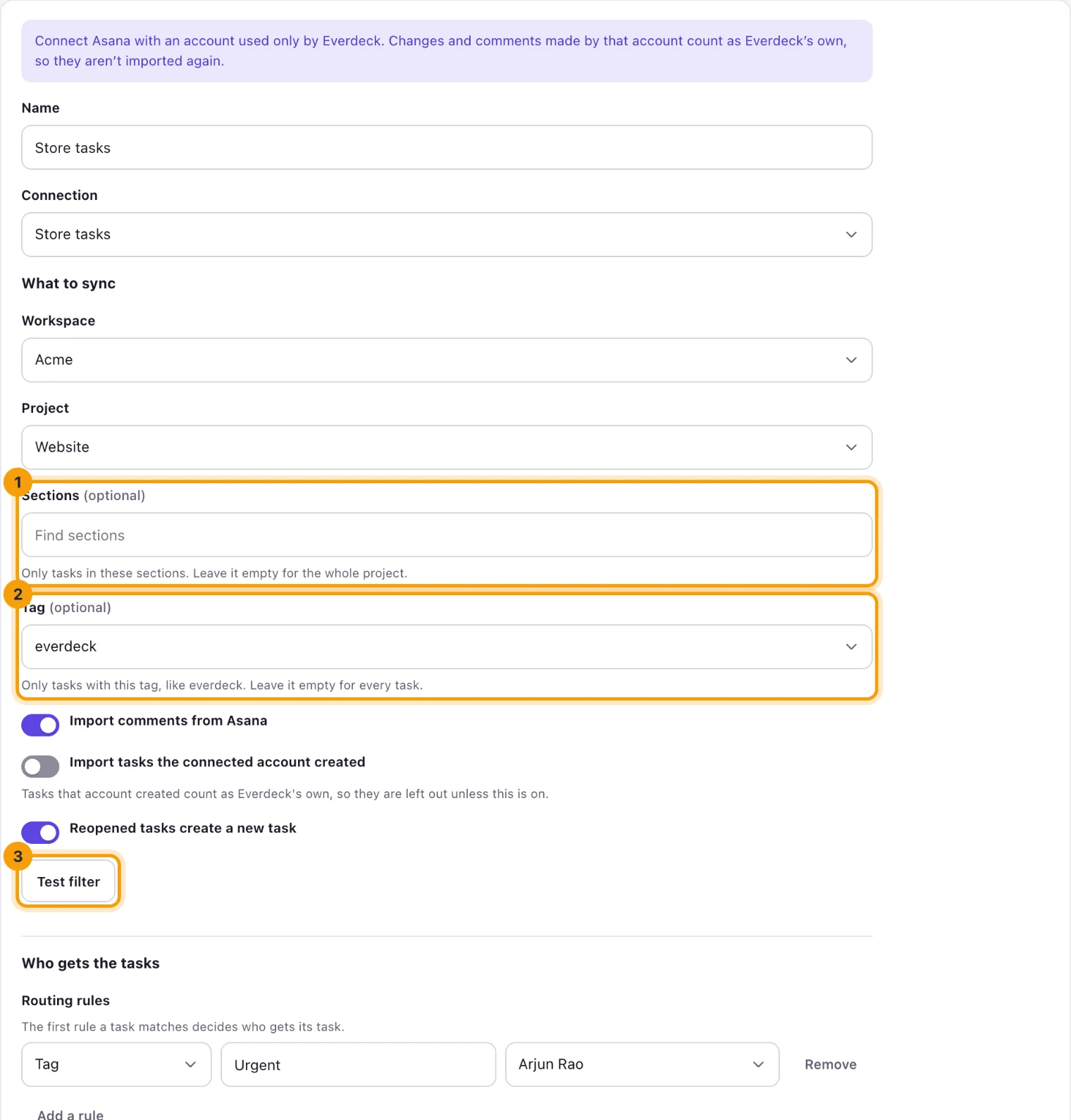
Setup: what to sync, read live from the tracker. - Under Routing rules, select Add a rule for each group of items that should go to someone in particular: by label, section, list, team, assignee or another field the tracker has. The first rule an item matches decides. Then choose who gets the rest in Otherwise assign to, or nobody.
- Choose the Reviewer, who asks for the tasks and reviews their results, and whether Results need review. Nobody reviews their own work, so a reviewer who also gets tasks from this sync is refused while results need review.
- Choose what goes back to the tracker: Finished results only, Results and every comment or Nothing. Leave writing status and results back on unless you only want items to come in. Where comments can reach people outside your company, only Nothing can be chosen, and the form says why; each tracker's section below says where that is.
- Choose how often the tracker is checked (every 2 to 60 minutes), and whether its items come in as tasks. The switches under what to sync say whether comments from the tracker, items the connected account created, and reopened items come in.
- Select Create sync and confirm it's you. A tracker that sends webhooks opens on the Webhook tab, so you can copy its address; the others open on Statuses.
There is a second way in: on a working connection's own page, select Sync tasks. The new sync starts on that connection.
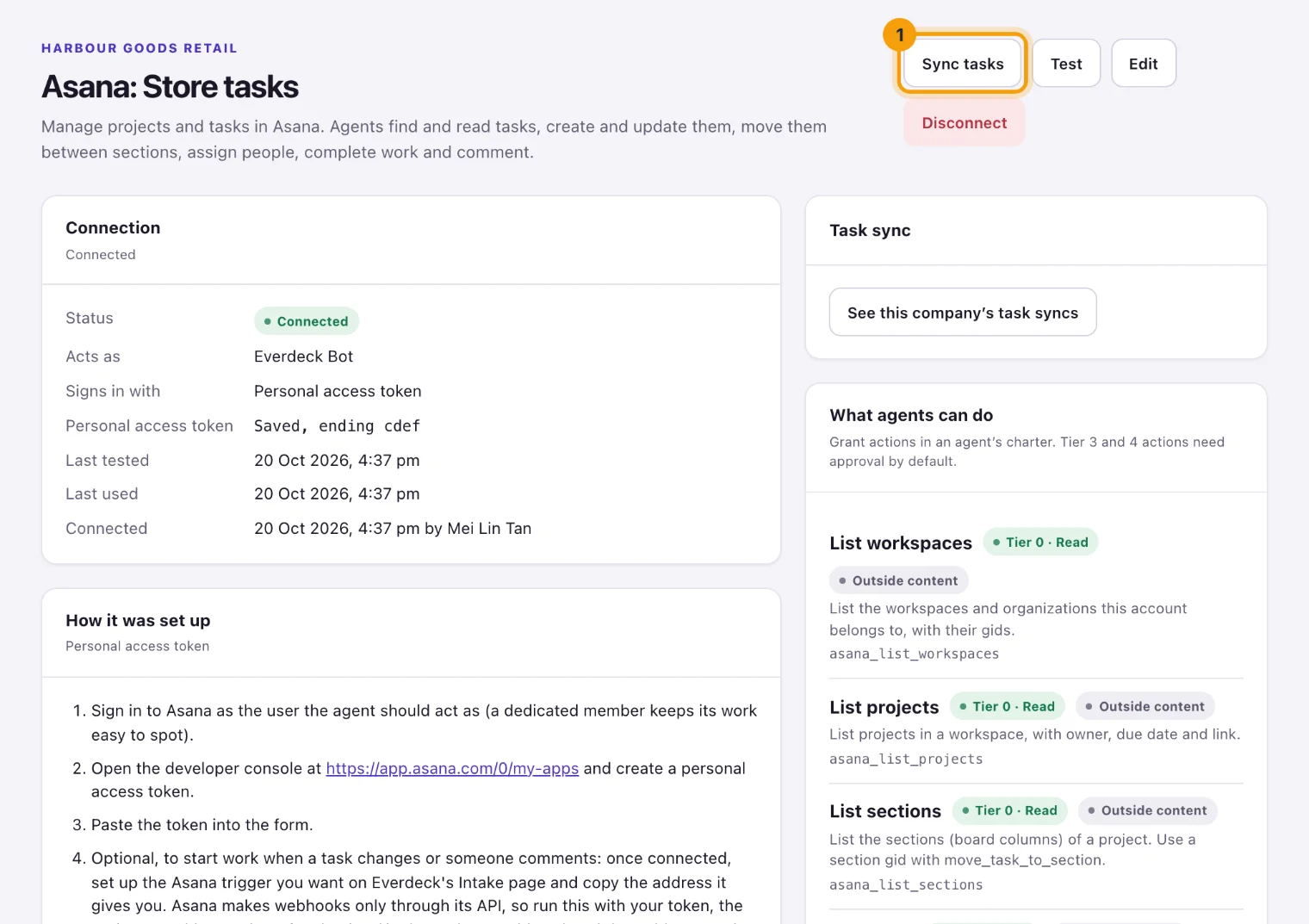
Changes that loosen a sync (writing back turned on, another connection, a looser comment mode, results without review) also ask you to confirm it's you. Each list read from the tracker counts as one of the company's hourly connection checks, so the page keeps them for a few minutes.
Map statuses
- Open the sync's Statuses tab. It lists each Everdeck status with the tracker status it moves the item to.
- Select Suggest to fill in likely matches, change any you want, or leave a status alone so the
tracker isn't updated for it. Then select Save statuses.
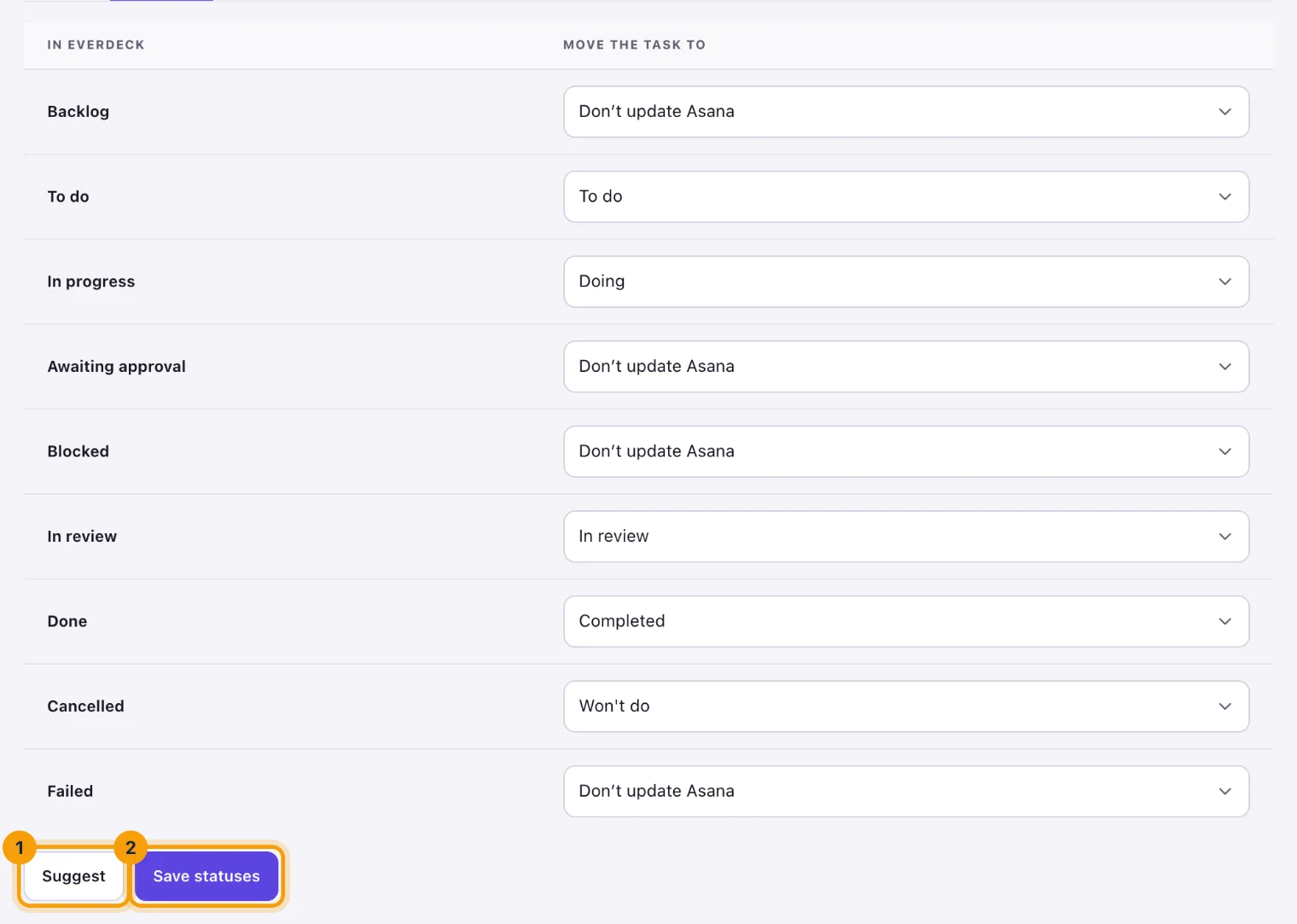
Statuses: where each Everdeck status moves the item.
Everdeck moves an item only through the tracker's own rules, never out of a status the tracker counts as done, and says so in the activity when it can't.
Some trackers say themselves whether a status means done. For Asana sections, Trello lists, monday.com labels and ClickUp's custom statuses, which are only names, Everdeck reads it from the name, and a name that only might mean done ("Ready to close", "Not done", "Released to QA") doesn't. Your choices here count first: a status you choose for Done or Cancelled means done, and one you choose for an open status doesn't.
Live updates
Jira, GitHub and Linear tell Everdeck about changes at once through a webhook, set up on the sync's Webhook tab. Asana, Trello, ClickUp and monday.com are checked every few minutes, and their syncs have no Webhook tab.
The webhook's address is shown once, right after you create the sync or rotate it, so copy it then. The tab lists the steps to add it in the tracker. Leave Require a signature on.
A delivery only tells Everdeck which item changed: Everdeck reads the item back from the tracker before it changes anything, so a repeated or late delivery does no harm. Each check also reads a few linked items again, so an item deleted in the tracker cancels its task even when nothing reported it.
Follow a sync
The Activity tab lists the Failed write-backs, each with Retry; the items linked to tasks; and what the sync did. Resync everything reads every matching item again.
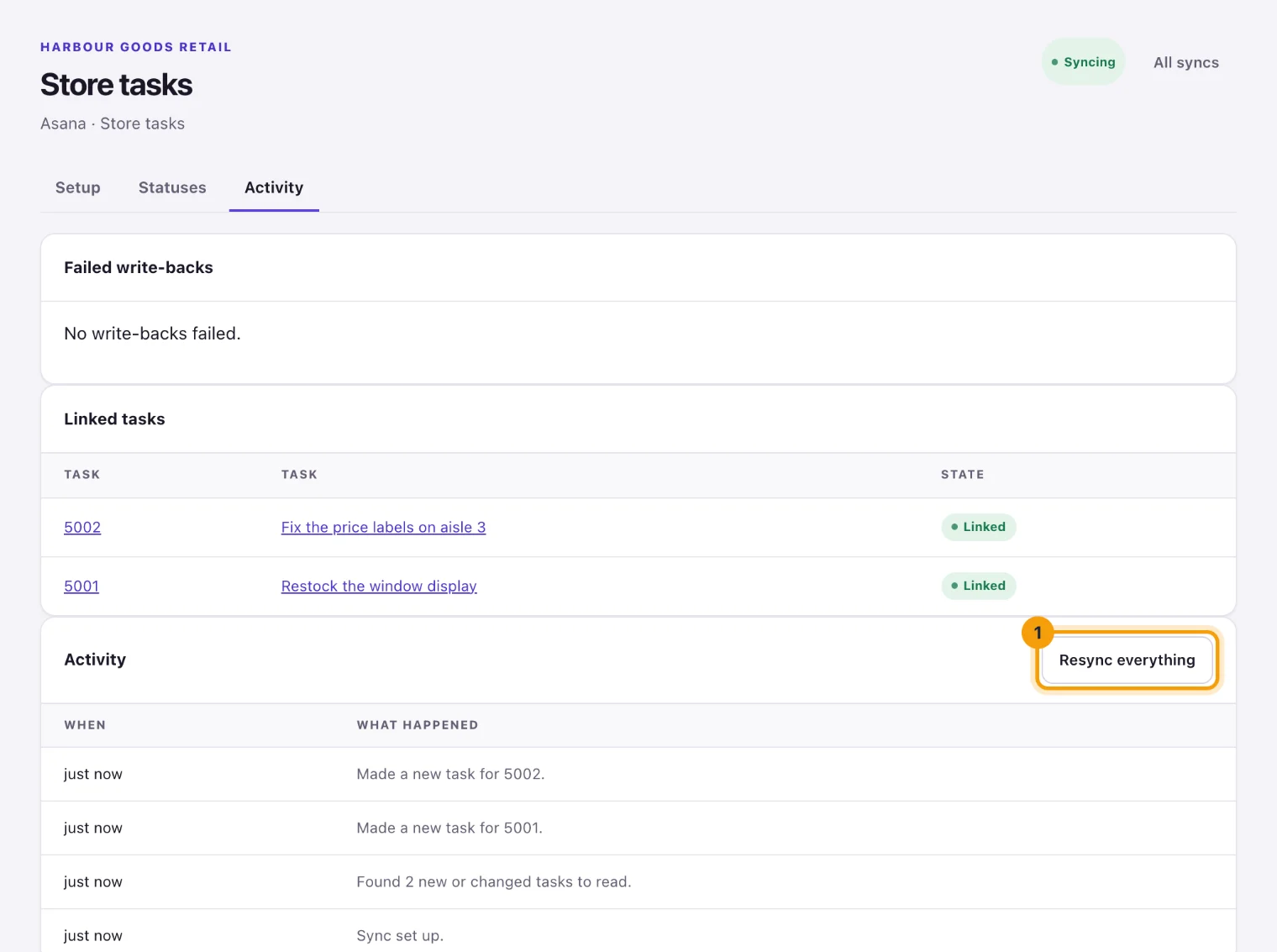
A task that came from a tracker shows its item on the task page, with a link to open it there.
Remove a sync
At the bottom of its Setup tab, select Remove sync. Syncing stops at once. Tasks it made stay, with their key from the tracker.
Jira
- One sync covers: some projects of one Jira site, typed as project keys (
OPS, WEB), and a JQL filter (by defaultlabels = everdeck AND statusCategory != Done). Everdeck puts the projects in front of the filter, so it never reads another project. - Routing rules match: label, component, issue type, Jira assignee (account ID) or a custom field.
- Statuses: Jira's own, in the categories Jira gives them.
- Live updates: a webhook signed with a secret Everdeck makes. The URL and secret are shown once, after you create the sync or select Rotate URL and secret; paste both into a Jira webhook.
- Comments can't go back to: service management projects, where they reach your customers.
Jira sync covers Jira's settings, its JQL and its webhook steps in full.
Asana
- One sync covers: one project of one workspace, optionally only tasks in some sections (up to 50)
or with one tag, like
everdeck. - Routing rules match: tag, section, or Asana assignee (email or ID).
- Statuses: the project's sections, plus Completed. A task moves to a section of the project, or is marked complete.
- Live updates: none; the sync checks Asana on its schedule.
- Comments: go back as comments on the task.
Linear
- One sync covers: up to 20 teams, optionally only issues with one of some labels or in one of some projects.
- Routing rules match: label, project, team (key or name), or Linear assignee (email or ID).
- Statuses: every team has its own. Everdeck moves an issue to the status with that name in the issue's own team, and says so when there isn't one.
- Live updates: a webhook you add in Linear (Settings > API > Webhooks, with Issues and Comments chosen). The URL is shown once, after you create the sync or select Rotate URL. Linear makes the webhook's signing secret: copy it from Linear into Signing secret and select Save signing secret. Everdeck never shows it again, and rotating the URL keeps it.
- Comments: results and comments mention nobody and show images as links.
GitHub
- One sync covers: up to 20 repositories. Only issues with every one of the sync's labels come in
(
everdeckto start with; up to 10, separated by commas), and pull requests only if you include them. - Routing rules match: label, GitHub assignee (login), milestone, or repository (owner/name).
- Statuses: an issue is open, closed as completed or closed as not planned.
- Live updates: a repository or organization webhook signed with a secret Everdeck makes. The URL and secret are shown once, after you create the sync or select Rotate URL and secret; paste both into the webhook in GitHub, as JSON, with the Issues and Issue comments events.
- Comments can't go back to: public repositories, where anyone can read them. Everdeck checks the repository's visibility again before each one. Results and comments mention nobody and show images as links.
Trello
- One sync covers: one board, optionally only cards in some lists or with one of some labels (up to 50 of each).
- Routing rules match: label, list, or Trello member (username or ID).
- Statuses: the board's open lists, plus Archived. A card moves to a list of the board, or is archived.
- Live updates: none; the sync checks the board on its schedule.
- Comments can't go back to: public boards, or a board whose visibility Trello doesn't say. Results and comments mention nobody and show images as links.
ClickUp
- One sync covers: some lists (up to 50) of one Workspace, optionally only tasks with one of some tags, separated by commas (up to 20).
- Routing rules match: tag, list, or ClickUp assignee (email or ID).
- Statuses: every list has its own. Everdeck moves a task to the status with that name in the task's own list, and says so when there isn't one.
- Live updates: none; the sync checks the Workspace on its schedule.
- Comments: go back as comments on the task, without notifying everyone on it.
ClickUp doesn't say who changed a status, so a task closed in ClickUp cancels its Everdeck task unless Everdeck's own write-back closed it.
monday.com
- One sync covers: one board, and the status column whose labels are the items' statuses, optionally only items in some groups (up to 50).
- Routing rules match: group, or person (user ID).
- Statuses: the labels of the status column you chose. A label marked done in the column's settings means done; the others are read by their names. An archived item counts as done.
- Live updates: none; the sync checks the board on its schedule.
- Comments can't go back to: shareable boards, where they reach the board's guests from outside your company. Elsewhere they go back as updates on the item.
What next
See how synced work shows up on the board in Tasks and the board, or set up Jira in detail with Jira sync.
Still stuck?
Email [email protected] and say what you were trying to do. Or browse every guide.