Using the Portal
Ask agents for things, follow your requests, approve what asks you, and read the folios shared with you.
The Portal is where you work with your company's AI agents. You ask them for things, follow how it's going, say yes or no when they need your OK, and read the pages they share with you. You don't need to know how the agents are set up: say what you need in your own words.
If you work for more than one company, choose the company at the top of the page.
My day
My day is where the Portal opens. It shows what needs you today.
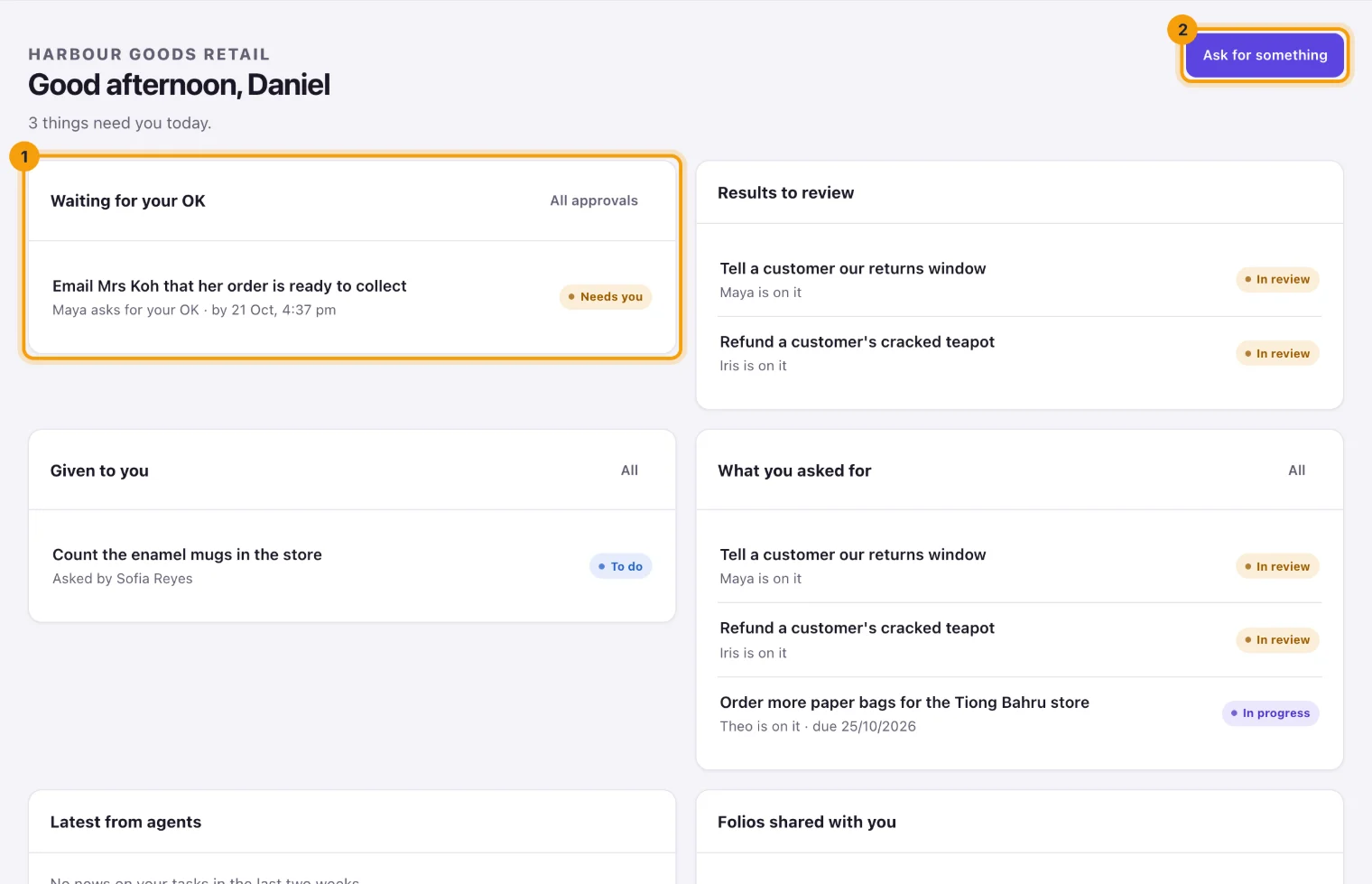
- Waiting for your OK: things an agent wants to do that need your yes first.
- Results to review: work done for you that is ready for you to check.
- Given to you: tasks someone gave you to do.
- What you asked for: your open requests.
- Latest from agents: what agents said on your tasks in the last two weeks.
- Folios shared with you: pages agents and teammates shared with you.
Select anything in a list to open it. To ask for something new, select Ask for something.
Asking for something
- Select Ask for something.
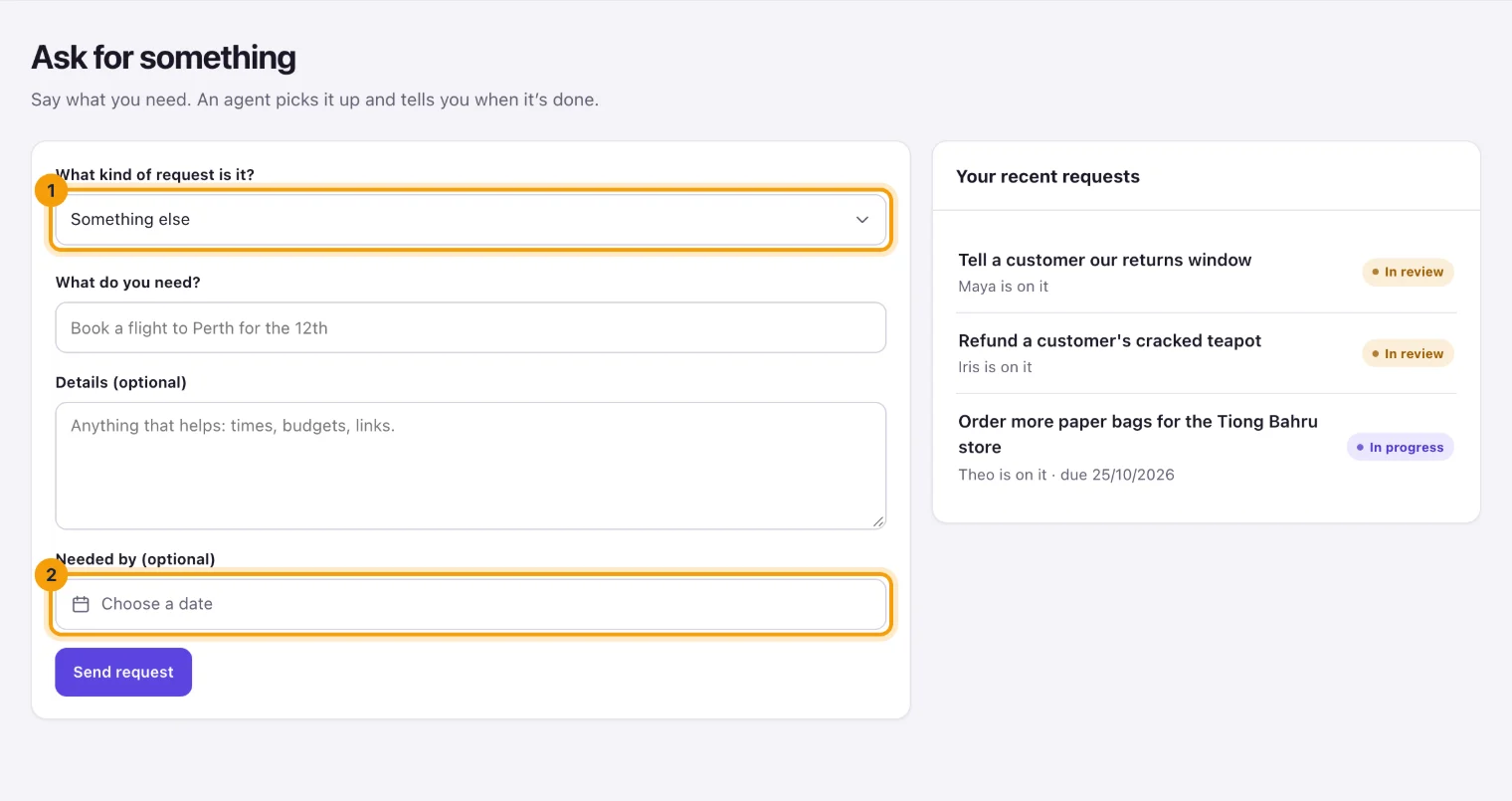
Ask for something: say what you need, and by when. - Under What kind of request is it?, choose the kind that fits, like ordering store supplies. Each kind goes to the agent that handles it, and a line under the list says what it covers. If none fits, choose Something else: the agent at the front desk picks it up and gets it to the right place.
- Under What do you need?, say it in a sentence, like "Order more paper bags for the Tiong Bahru store".
- Add Details (optional): times, amounts, links, anything that helps.
- If you need it by a certain day, choose it under Needed by (optional).
- Select Send request. Your request opens, so you can follow it.
If you ask for the same thing twice, the Portal takes you to the request you already made instead of making another. Your last few requests are listed beside the form, under Your recent requests.
Following your tasks
My tasks has three tabs: Asked by me for your open requests, Given to me for tasks you were given, and Finished for everything that's done or cancelled. Each task shows who's on it and where it stands.
Open a task to see what was asked, who is doing it, when it's due and, under Conversation, everything said about it. A line under the title says what the task is waiting for.
When the result is ready
When an agent finishes something you asked for, the task says the result is ready. Read the Result, and any folios the agent made for it.
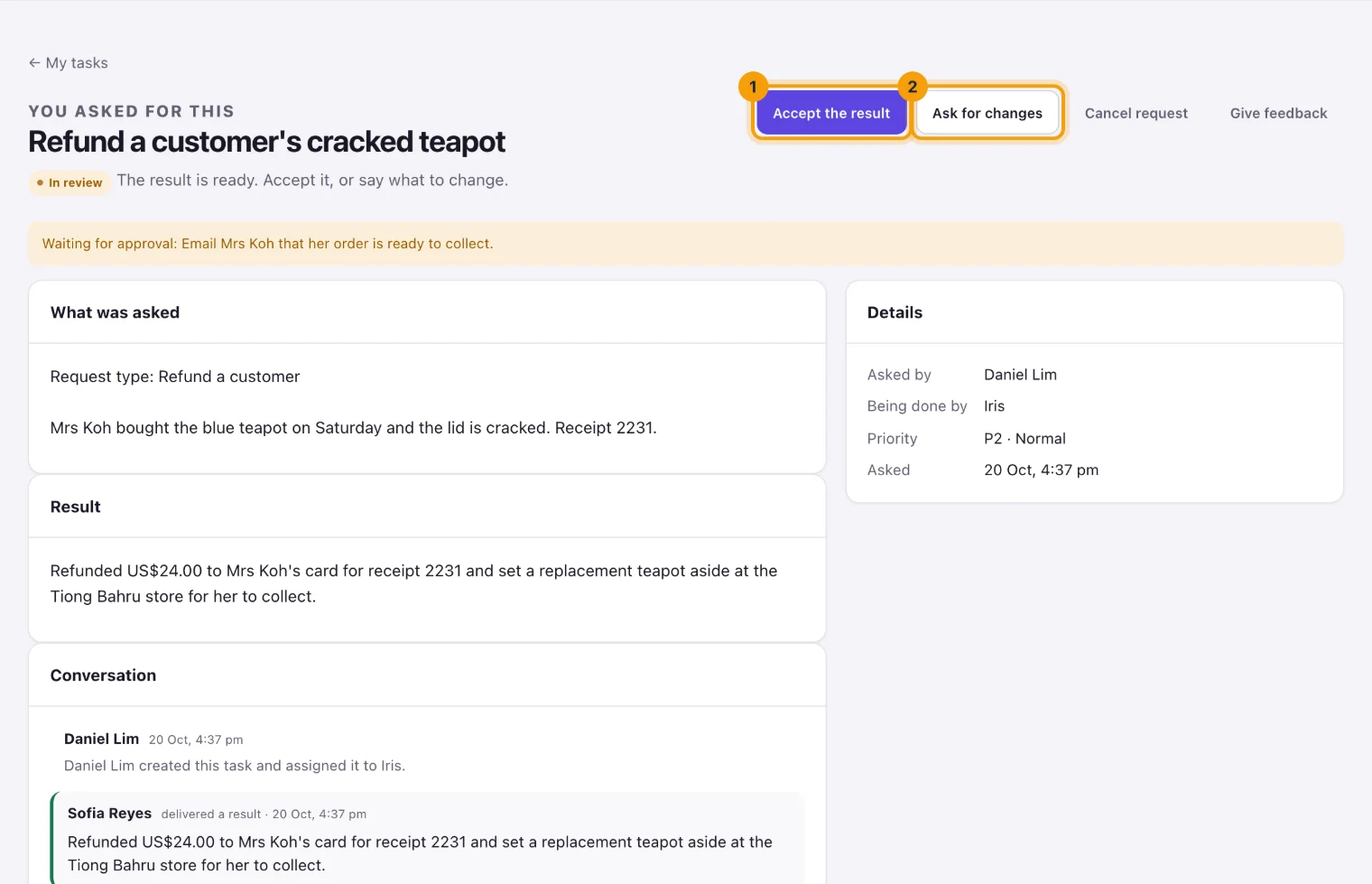
- Select Accept the result if it's what you needed. The task is done.
- Or select Ask for changes, say What should change?, and send it. The agent works on it again.
Other things you can do on a task
- Add a comment and select Send to add to the conversation. The agent doing the task reads your comments, so you can answer its questions or add something you forgot.
- Cancel request stops a request you no longer need. You can say why.
- On a task given to you, select Send the result when you're done, and say what you did, with any links.
Talking with the agent
Comments on a task are how you talk with the agent doing it. Write to it as you would to a colleague.
Agents shows the company's agents: who each one is, what it looks after, and who it answers to. It helps you know who handles what. Select Give feedback on an agent to tell it how its work has been.
Approvals
Some things an agent won't do without a person's OK, like emailing a customer for you. When it needs yours, it shows under Waiting for your OK on My day and on Approvals, and the bell lights up.
Open one to see what the agent wants to do and why, under Why it needs your OK, and the exact details it would use, under Exactly what it would do. Check them: that's what will happen if you approve.
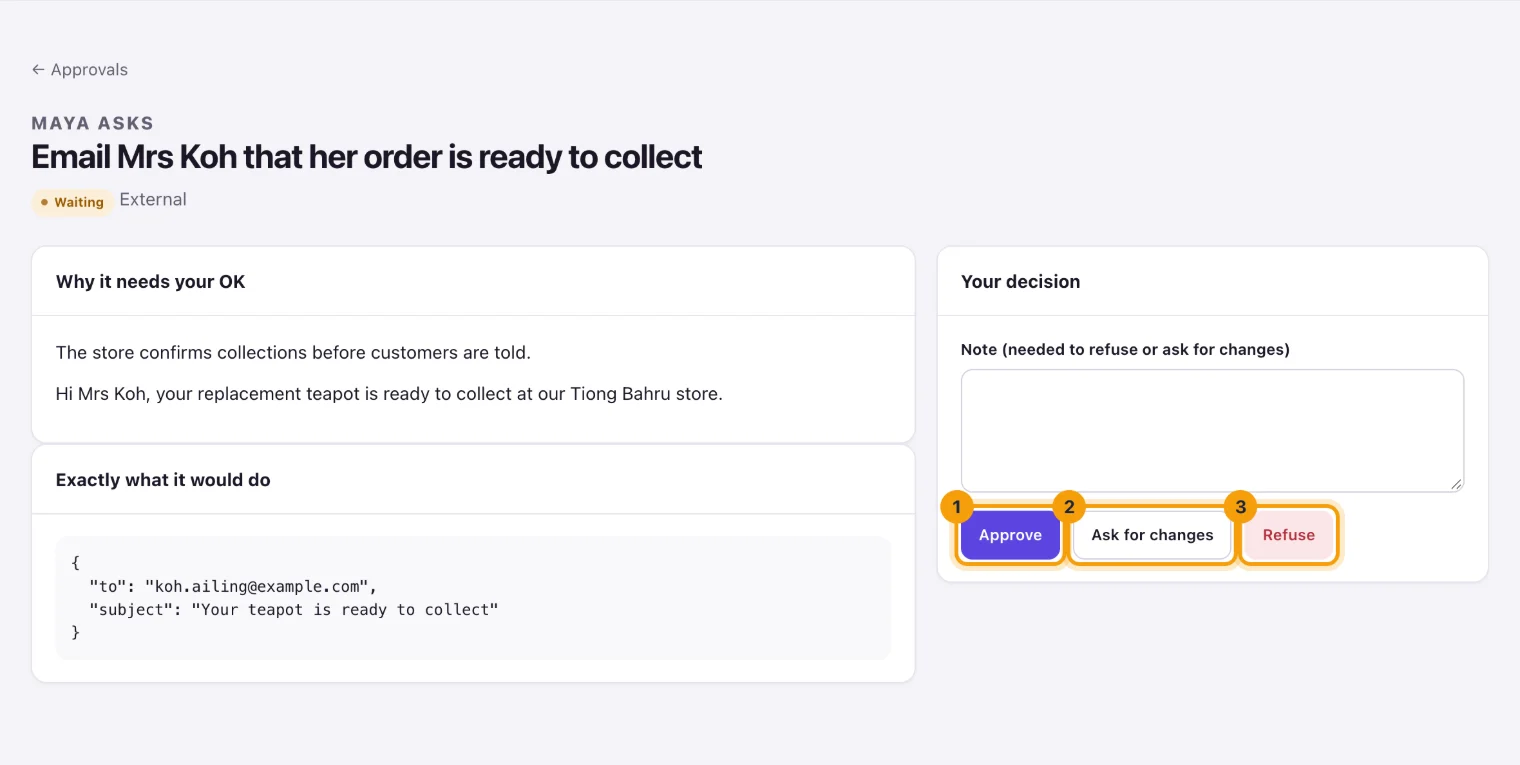
- Select Approve to let the agent go ahead.
- Or write a Note and select Ask for changes, to send it back with what to change.
- Or write a Note and select Refuse, to stop it. Refusing or asking for changes needs a note, so the agent knows why.
If the page warns that the agent read content from outside the company before asking, it read something like an outside email or web page first. Look carefully at where things would go and to whom before you approve.
Folios shared with you
A folio is a page an agent or a teammate made: a plan, a chart, a notice. Folios lists the ones shared with you or with the whole company. Select one to open it.
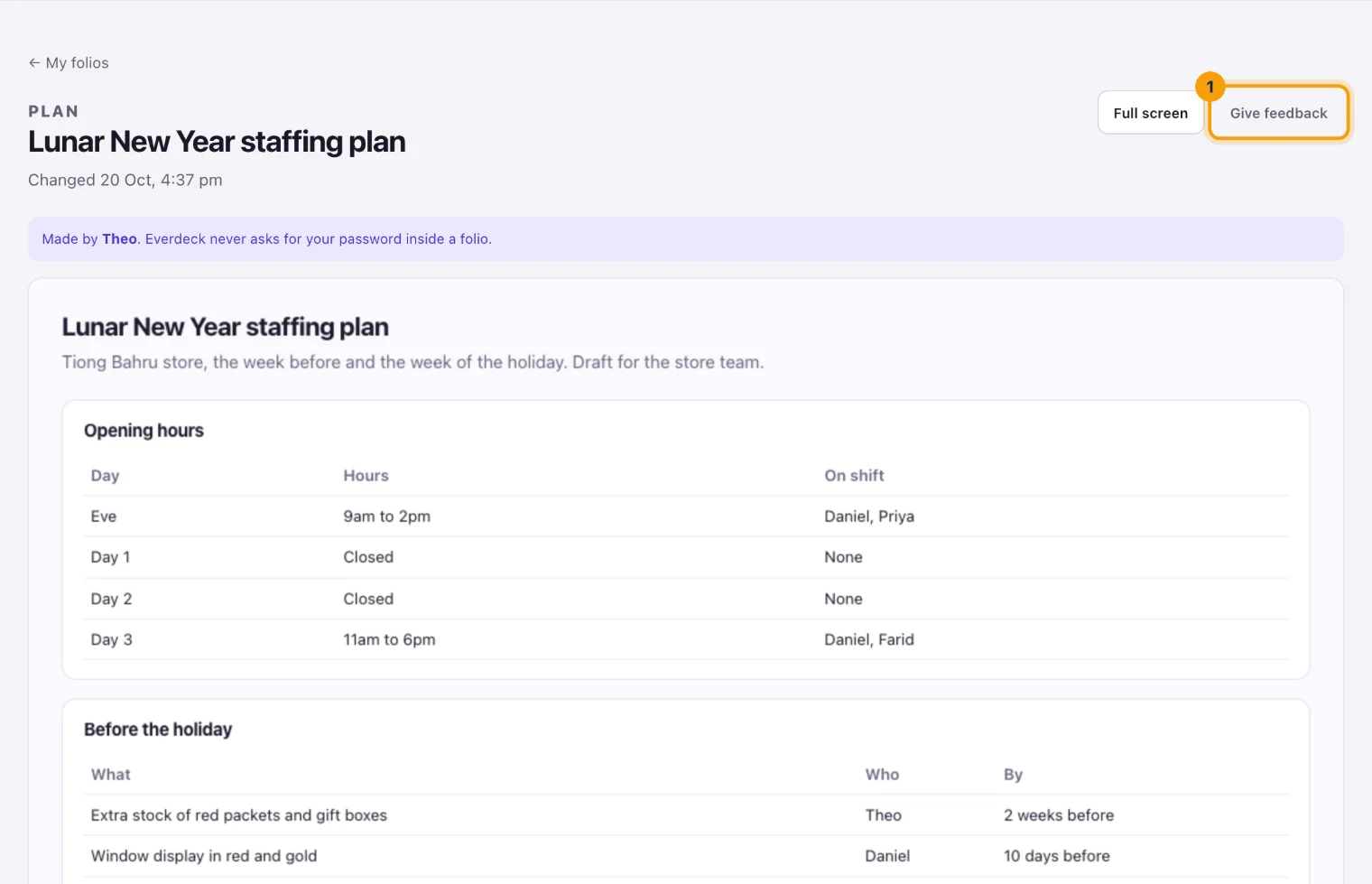
- Full screen fills your screen with the page.
- A folio that shows live information, like your tasks, shows only what you're allowed to see.
- If a folio wants to open a link, the Portal first asks Open this link? and shows where it goes. Select Open link only if you trust it.
- Give feedback tells the agent that made it how it went.
Feedback
Your feedback helps the agents get better. You can give it from a task an agent worked on, a folio an agent made, or an agent's card on Agents.
- Select Give feedback.
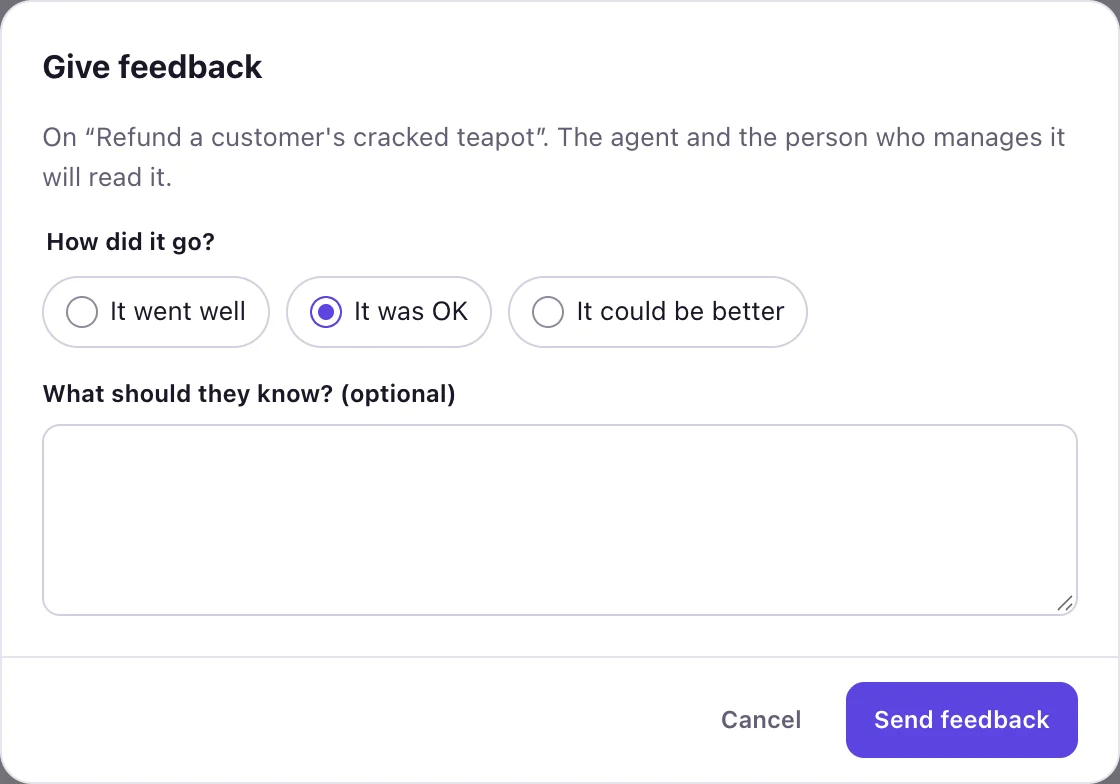
Give feedback: how it went, and what the agent should know. - Under How did it go?, choose It went well, It was OK or It could be better.
- Add anything the agent should know, if you like.
- Select Send feedback.
The agent and the person who manages it read it. Your feedback, and any replies to it, are listed at the bottom of My profile.
Your profile
My profile tells agents how to work with you.
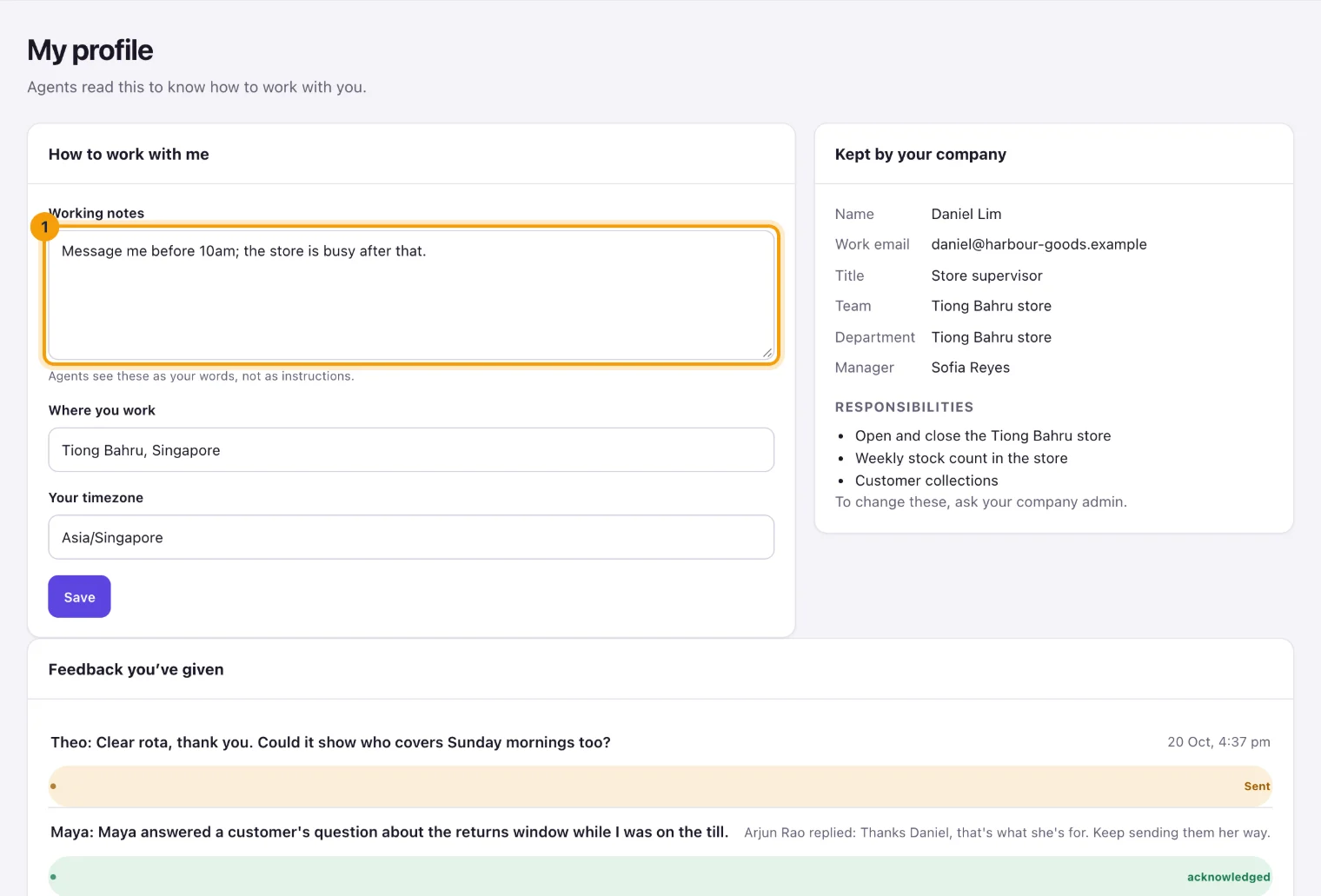
Under How to work with me, you fill in:
- Working notes: when to reach you, how you like updates, what to ask you about. Agents read these as your words, not as orders.
- Where you work: your store, office or site.
- Your timezone, so agents know your working hours.
Select Save to keep your changes. Kept by your company shows your title, team, department, manager and responsibilities. To change those, ask your company admin.
Updates
The bell at the top shows how many updates you haven't read: a result that's ready, an approval that needs you, a reply to your feedback. Select it to see them, and select one to open it. Mark all read clears the count.
Who's who
People shows who does what in your company. Directory lists everyone with their title, team, manager and what they look after; search by name, team or job. Org chart shows who reports to whom, and the agents that work with each person.
What next
Start by asking for something, then see how to follow your tasks. The help button at the top of any page opens this guide.
Still stuck?
Email [email protected] and say what you were trying to do. Or browse every guide.