Everdeck Desktop
In early access. Connect a Mac running Everdeck Desktop and let it think for your agents with an open model, at no cost from a model provider.
Everdeck Desktop is an app for your Mac that lets the computer think for your agents. It runs an open AI model on the Mac itself, so the routine work of the agents you assign to it costs nothing at a model provider. Everything else stays in Everdeck: the agent's charter, its tools and their connections, approvals and the audit log. Whenever the computer can't answer, the agent's cloud model answers instead, so the work carries on; or, for an agent that runs only on its computer, because you chose that or no AI key reaches its cloud model yet, its work waits for it.
Everdeck Desktop is in early access: the Mac app isn't available to download yet. Until we turn it on for your account, the Desktop page says so and has no way to connect a computer. To ask for it, an account owner or admin selects Request early access there, and we'll tell you when your Mac can join; anyone can also ask from our Download page. This page describes how it will work.
Who can connect a computer
Account owners and admins open the Desktop page, under Account, and connect computers there. Connecting a computer, assigning agents to it and removing it ask you to confirm it's you with your second factor, if you haven't in the last 15 minutes.
A computer belongs to the account, not to a company: its agents can come from any of the account's companies. If the person who connected a computer leaves the account, the computer is disconnected and its agents go back to their cloud models; agents that ran only on it stop until you assign them another computer, or tick Use the cloud model when the computer can’t answer on their Desktop tab and make sure an AI key reaches their cloud model.
What a computer needs
- A Mac with Apple Silicon and macOS 13 or later.
- At least 16 GB of memory. Everdeck Desktop offers the models we have tested with agents: Qwen3.5 4B for {{desktop_memory_4b}}, and Qwen3.5 9B, which does better work, for {{desktop_memory_9b}} or more.
- Space for the models you install (several GB each), and an internet connection.
Everdeck Desktop downloads each model from its official source and checks it before using it. It sits in your Mac's menu bar, where you install or remove models, pause it, see what it saved this month and choose whether it opens when you log in. When a newer version is out, Everdeck Desktop says so in its window and its menu, with a link to download it.
Connect a computer
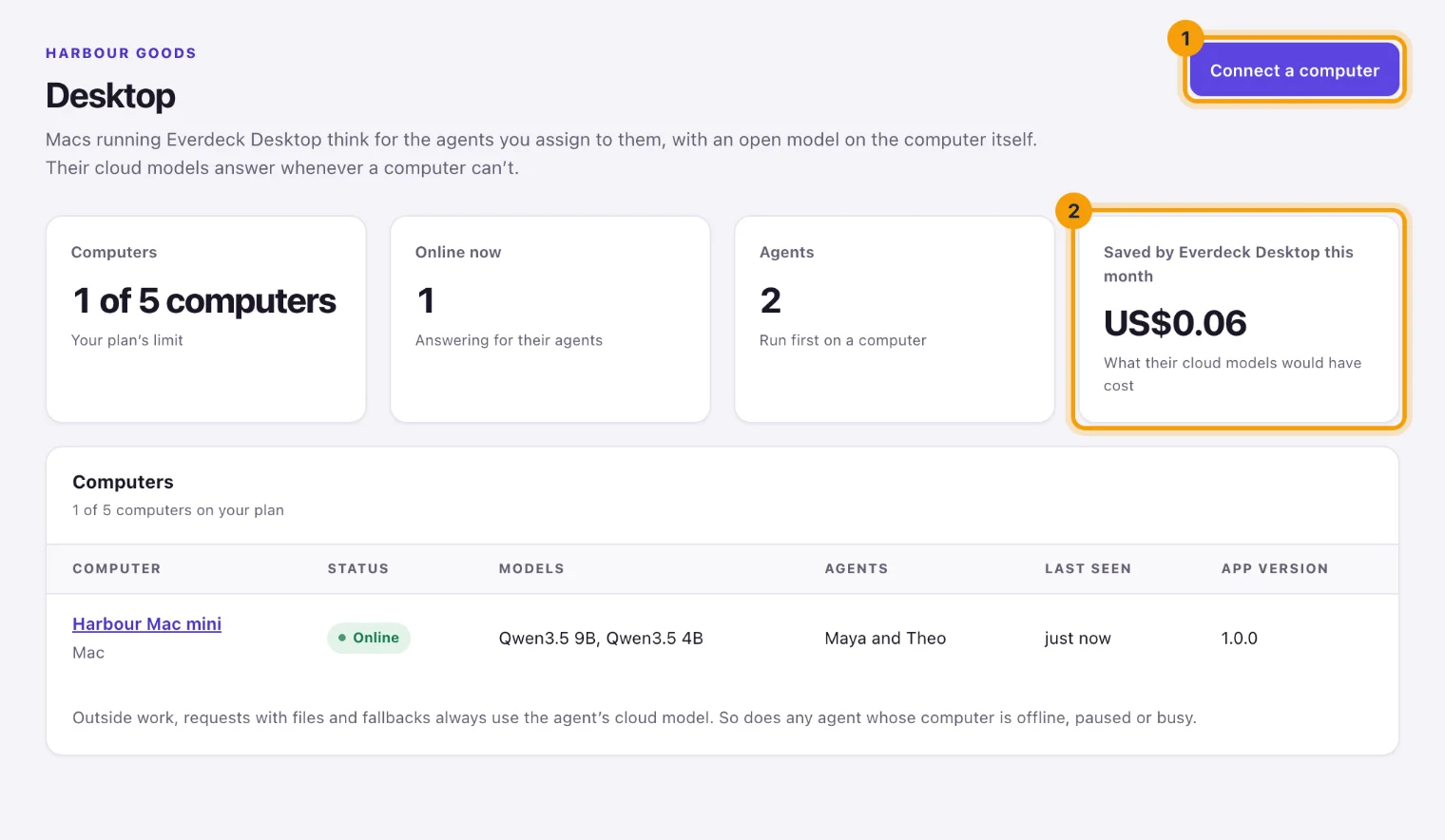
- On the Desktop page, select Connect a computer, then Download Everdeck Desktop and install it on the Mac.
- Open it, and click Connect in its menu. It opens your browser at a page showing the computer's name, ready to connect.
- Check the name, and where and when the code was requested, change Name in Everdeck if you like, and select Connect this computer.
- Confirm it's you. The page then says it's connected, and Everdeck Desktop picks that up by itself.
Only approve codes from your own computer: approve a code only when you're sitting at the Mac and Everdeck Desktop on it is showing that code right now. Never approve a code someone sends you by email, chat or phone, even if they say they're from Everdeck. Whoever's computer you connect receives the working context of the agents you assign to it.
The code in the address works once, for 15 minutes. If the browser didn't open, type the code Everdeck Desktop shows into Connect a computer's dialog and select Continue with the code. If you belong to more than one account, choose the account at the top of the page before you connect.
Assign agents
A computer thinks only for the agents you assign to it, each with one of the models it has installed. You can assign them from the computer or from the agent:
- On the Desktop page, open the computer, select Assign agents, choose the Model, tick the agents, and select Assign.
- On the agent's Model tab, open Desktop, choose the Computer and its Model, and select Assign. Change moves the agent to another computer or model, and Remove from computer takes it off.
Either way, Use the cloud model when the computer can’t answer says how the agent runs:
- Ticked (the default): the computer answers first, and the agent's cloud model answers whatever the computer can't. Without an AI key for its cloud model, the agent runs only on its computer until you add one, so you can activate an agent with a computer without any key.
- Not ticked: the agent runs only on its computer. It needs no AI key, so you can activate it without one. Everything it does waits for the computer (see below).
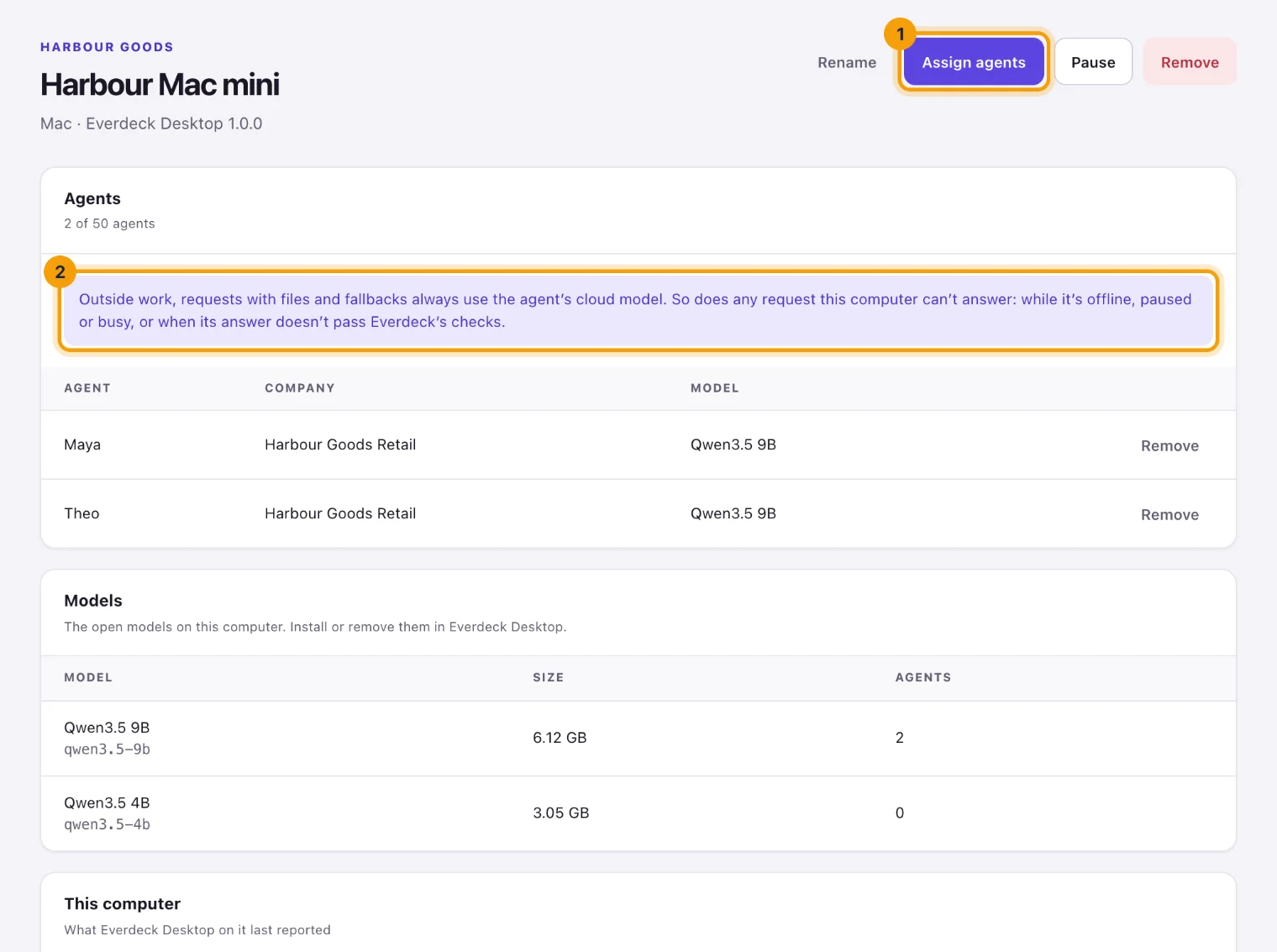
An agent runs on one computer at a time. A computer serves up to 50 agents, and they can use different models. The computer runs one model at a time, so agents on different models share it: their requests wait their turn, the most urgent tasks first, and switching to another model takes about a minute.
The agent's Model tab opens with a line saying how it runs: on the cloud, first on a computer with the cloud as backup, or only on its computer. Its charter doesn't change: its cloud models and routes are the ones that answer when the computer doesn't, unless it runs only on its computer.
What runs where
A computer answers an agent's work sessions that use the model in its charter. When one of the agent's routes picks the model for a session, the route wins and the cloud answers.
For an agent with its cloud model as backup, the cloud model always answers:
- outside work: a task from outside the company, and every request in a session after it has read outside content (see Outside content);
- requests that carry files, such as images and PDFs;
- the request after the model is asked to try again;
- Portal chat, evaluations and their grading, and the lessons Everdeck drafts from your reviews.
The cloud also answers any request the computer can't take: while it's offline (Everdeck hasn't heard from it for 2 minutes) or paused, while it's running another model (such an agent never makes the computer switch models, which would hold up the other agents' work), when it's busy with other agents' work for more than 30 seconds, and when its answer doesn't pass Everdeck's checks, such as a tool call that names a tool the agent doesn't have. Nothing waits for the computer, and the agent doesn't pause because of it.
Agents that run only on their computer
An agent with no cloud model behind its computer works differently, whether you unticked the box or no AI key reaches its cloud model yet:
- Its work waits for the computer. While the computer is offline, paused or busy, the agent's work is held, and the agent's page says it's waiting for the computer. When the computer comes back, the work carries on by itself. For the cloud to answer meanwhile instead, the agent needs both: tick Use the cloud model when the computer can’t answer on its Desktop tab, and make sure an AI key reaches its cloud model.
- Outside work and files stop. They never go to a computer, and there's no cloud model to take them, so the task is marked Blocked with a note that it needs a cloud model. Give the task to another agent, or give this one its cloud model, which takes both: tick Use the cloud model when the computer can’t answer on its Desktop tab, and make sure an AI key reaches its cloud model.
- No Portal chat, evaluations or lessons. These need a cloud model, so they're off for the agent.
- If the computer keeps failing (it doesn't answer, or keeps dropping out), the agent pauses and the note names the computer. A computer that's only busy with other agents' work never pauses an agent: its work waits a minute or two and tries again.
- Its requests wait in the computer's queue for up to 10 minutes, while the computer works for other agents or switches to the agent's model.
- If the computer keeps failing to load the agent's model for 30 minutes, the model may not fit in its free memory. The agent pauses, and the note suggests freeing some memory or choosing a smaller model.
- If it loses its computer (removed, or Everdeck Desktop turned off for the account), or the computer no longer has the agent's model installed, it can't work: it pauses until you assign another computer, install the model, or tick Use the cloud model when the computer can’t answer and make sure an AI key reaches its cloud model. Activating or resuming it is refused for the same reasons.
Its answers cost nothing at a model provider. Your plan's session limits still apply, and so do budgets and the spending cap.
What it saves
For each answer a computer gives, Everdeck works out what the agent's cloud model would have charged for the same tokens, at its list price. The month's total shows on the Desktop page as Saved by Everdeck Desktop this month, and on the Spending cap tab of Billing. What a computer answers costs nothing at your provider, so it isn't counted in your spend, agents' budgets or the spending cap.
The figure is an estimate. While a computer answers, the cloud model's prompt cache can go cold, so the next answer from the cloud can cost a little more than it would have; the savings don't subtract that.
Sessions a computer answers still count toward your plan's sessions each month, like any other session.
Keep agents working when your Mac sleeps
A Mac that's asleep can't answer, so Everdeck Desktop keeps it awake while your agents have work for it. The Power section of its Settings says how it treats power and time:
- Stay awake while agents have work, on at first: while a request runs or waits, the Mac doesn't go to sleep by itself. The display can still turn off.
- Keep this Mac awake while it's plugged in, off at first: on power, it stays awake whether or not there's work.
- Work only when plugged in, off at first: on battery, it pauses until it's plugged in again.
- Pause when the battery is below 20%, on at first: you choose the level, from 10% to 50%, and it works again once the battery is 5 points above it.
- Working hours, off at first: it works only on the days and between the times you choose, in the Mac's own time zone. Turned on, they start as Monday to Friday, 9:00 to 18:00.
When one of these pauses the Mac, it finishes the answer it's working on first. To pause it yourself for a while, choose Pause for 1 hour or Pause until tomorrow (9:00 the next morning, the Mac's time) in its menu. Either ends by itself, and Resume ends it sooner.
While the Mac is paused, the Desktop page says why and until when, such as "Outside its working hours until Mon 09:00", in your own time zone. So does each of its agents' Model tab, in its summary and on its Desktop tab. Agents with their cloud model as backup use it meanwhile; agents that run only on the Mac wait, and carry on by themselves when it's back.
One limit: a MacBook with its lid closed on battery sleeps whatever Everdeck Desktop asks. With the lid closed, it stays awake only on power with a display attached.
Let agents read folders on your Mac
Agents on a computer can also read files on it, in folders you choose to share. They can list a folder, search it and read a file's text. They can't change, move or delete anything. Two choices decide what an agent reads: the folders the Mac shares, set in Everdeck Desktop, and the ones each agent may read, which an account owner or admin picks in Everdeck.
Share folders on the Mac
- In Everdeck Desktop, open the Folders tab and select Add folder.
- Choose the folder. You add folders one at a time, up to 50. A folder can't be inside another shared folder, or hold one: each folder has its own trust and its own agents.
- On the folder's card, choose:
- Trust this folder, off at first: whether the Mac's own model may read its files (see Trusted folders).
- Shares: the kinds of file it shares: documents, PDFs, spreadsheets, and text and code. All are on at first.
- Largest file: the largest file it reads: 5, 10, 20 or 50 MB, 20 MB at first. A larger file is listed but never read.
Read by names the agents Everdeck lets read the folder, or says none does yet. Remove stops sharing the folder, and every agent loses it; its files stay where they are. A folder you remove and add again is new to Everdeck, so you pick it for each agent again. Everdeck Desktop tells Everdeck which folders it shares whenever you change them. If you move, rename or delete a shared folder on the Mac, its card says Not found on this Mac, and agents can't read it until it's back where it was; to share it from its new place, remove it and add it again.
Choose the folders an agent can read
An agent starts with no folders. A folder you share later is never given to an agent by itself, and there's no way to give an agent every folder at once.
- Open the agent, select the Model tab, then its Desktop tab.
- Under Folders it can read, tick the folders the agent may read. Each shows where it is on the Mac and whether it's Trusted or Not trusted.
- Select Save folders, and confirm it's you with your second factor if you haven't in the last 15 minutes.
Only account owners and admins choose. Other people who can open the agent see only the folders it reads. To take a folder away, untick it and save. An agent that runs only on its computer can read only trusted folders, so the others can't be ticked for it.
An agent keeps its folders when you change its model on the same computer, and loses them when you take it off the computer or move it to another. If the tab says to add folders in Everdeck Desktop, the Mac shares none yet; if it says to update Everdeck Desktop, the app on the Mac is older than 0.22.
On the Desktop page, each computer's page lists its Shared folders: each folder's path, whether it's trusted and the agents that read it.
What agents can do with them
With folders to read and its computer online, an agent can:
- list a folder, 200 files and folders at a time;
- search a folder for files by name, and by what they say where Spotlight has indexed them, up to 50 files;
- read a file's text, up to 20,000 characters at a time (8,000 when it runs on the Mac's own model), and a longer file in parts.
In one session an agent can read up to 20 files, and list or search up to 30 times. It never writes, moves, renames or deletes anything. These tools run without asking (Auto) unless the agent's charter sets them otherwise, and Never turns them off. Each list, search and read is recorded in the audit log, and shows in the session's steps in Activity. While the computer is offline or paused, the agent can't read its folders and carries on without them.
What leaves your Mac
The Mac sends Everdeck a file's text, never the file itself. For a list or a search, it sends the names, sizes and dates of what it finds. The text becomes part of the agent's work in Everdeck, like anything its tools return: it's kept with the session's run history for as long as your plan keeps it, and sent to the agent's cloud model whenever that model answers.
Everdeck Desktop also tells Everdeck which folders it shares: each one's name, where it is (with your home folder written ~) and whether it's trusted. That's what the agent's Desktop tab and the computer's page show. See the Privacy Policy and the Data Retention Schedule.
Trusted folders
Trust decides which model may read a folder's files:
- A trusted folder's files can be read by whichever model the agent uses, the Mac's own included.
- A file from a folder that isn't trusted counts as outside content, like an email or a web page (see Outside content). Once an agent reads one, the rest of its session uses its cloud model, never the Mac's, and its riskier actions need approval, as after any outside content. An agent that runs only on its computer can't read a folder that isn't trusted.
Trust a folder only if you know what its files say, such as your own documents: a file written to mislead an agent is more likely to fool the Mac's smaller model than a cloud model. Everdeck treats a folder as trusted only while both the Mac and Everdeck say it is.
What a Mac never shares
Whatever anyone picks:
- Everdeck Desktop won't share your whole disk, your home folder itself, your Library folder or anything in it (except iCloud Drive and the folders of cloud storage apps, such as Dropbox, Google Drive, OneDrive and Box), system folders, or its own data. Choose a folder of your own, such as one in Documents.
- In a shared folder, it never lists, searches or reads hidden files and folders (names that start with a dot,
such as
.sshand.env), keys and certificates (such as.pemand.keyfiles), password stores and keychains, or SSH keys (id_files). Nor does it go into apps or other packages the Finder shows as one file, such as a Photos library. - It never follows a symbolic link out of a shared folder.
Which files it reads
It reads the text of:
- documents: Word (.docx and .doc), RTF, OpenDocument text (.odt) and web pages (.html);
- PDFs, unless they're protected by a password;
- spreadsheets: Excel workbooks (.xlsx), sheet by sheet, and CSV and TSV files;
- text and code: plain text, Markdown, JSON, YAML, XML and source code.
Other files, such as images, are listed and found by name, but have no text to read.
Recent reads
Everdeck Desktop's Status tab shows Recent reads: what agents listed, searched and read, and what they were refused, such as "Mia read Northwind renewal.docx in Contracts". It keeps the last 200, on the Mac only, until you select Clear. While the Mac reads for an agent, its menu bar says so.
Known limits
- Everdeck Desktop isn't sandboxed by macOS yet, so the rules above, not macOS, are what keep it to your shared folders. macOS still asks once before the app reads Documents, Desktop, Downloads, a network volume or a removable disk.
- Searching by what files say finds only files Spotlight has indexed, and only where indexing is on.
- PowerPoint, Pages, Numbers and Keynote files, images and older .xls workbooks are listed but have no text.
- If a file changes while an agent reads it in parts, the parts may not line up.
Pause or remove a computer
Open the computer on the Desktop page:
- Pause stops it taking work, and its agents use their cloud models until you select Resume; agents that run only on it wait. Pausing it in Everdeck Desktop's own menu does the same.
- A Mac can also pause itself, for its power or working-hours settings (see above). The Desktop page then shows it as paused and says why, and it carries on by itself once the reason has passed.
- Rename changes the name the Desktop page and your agents' pages show.
- Remove disconnects it for good, and its connection stops working. Its agents go back to their cloud models at once; agents that ran only on it stop until you assign them another computer, or tick Use the cloud model when the computer can’t answer and make sure an AI key reaches their cloud models. To use the computer again, connect it again.
Privacy
For the work it answers, a computer receives the agent's working context, as a cloud model would: the agent's instructions and the conversation so far, including the task, what its tools returned and the company memory it reads. It never receives outside work, files, your connections' secrets or your AI keys, and nothing else leaves Everdeck for it. The work is thought through on your computer and the answer comes back to Everdeck. From the folders you share, the computer sends Everdeck the text of the files agents read, never the files themselves (see What leaves your Mac).
Requests and answers travel encrypted through Everdeck's own relay in Singapore, which passes them on in memory and stores none of them. Each computer signs in with its own credential and can reach only its own requests. See the Security Overview and the Privacy Policy.
Connect only computers you or your team control: whoever can use the Mac can see what reaches it.
Limits
- Computers per account: 1 on Starter, 5 on Growth and 20 on Scale.
- Agents per computer: up to 50. An agent runs on one computer at a time.
- Models: the tested models Everdeck Desktop offers. Other models can't be added in this first version.
- Shared folders: up to 50 on each Mac. In a session, an agent reads up to 20 files and lists or searches up to 30 times.
- A Mac with Apple Silicon and macOS 13 or later. Windows and Linux aren't supported yet.
Still stuck?
Email [email protected] and say what you were trying to do. Or browse every guide.