People directory and the Portal
Add your people, their managers and what they look after, invite them to the Portal, and choose what they can ask for.
The People page is the company's directory: who works there, their title and team, who they report to and what they look after. Agents read it to know whom to ask and whom to hand work to. It is also where you invite employees to the Portal, the simple screen where they ask agents for things, follow their requests and approve what asks them.
Everyone with a role in the company can read the directory. Company admins, and account owners and admins, change it: they Add a person, Import CSV and set up Portal requests.
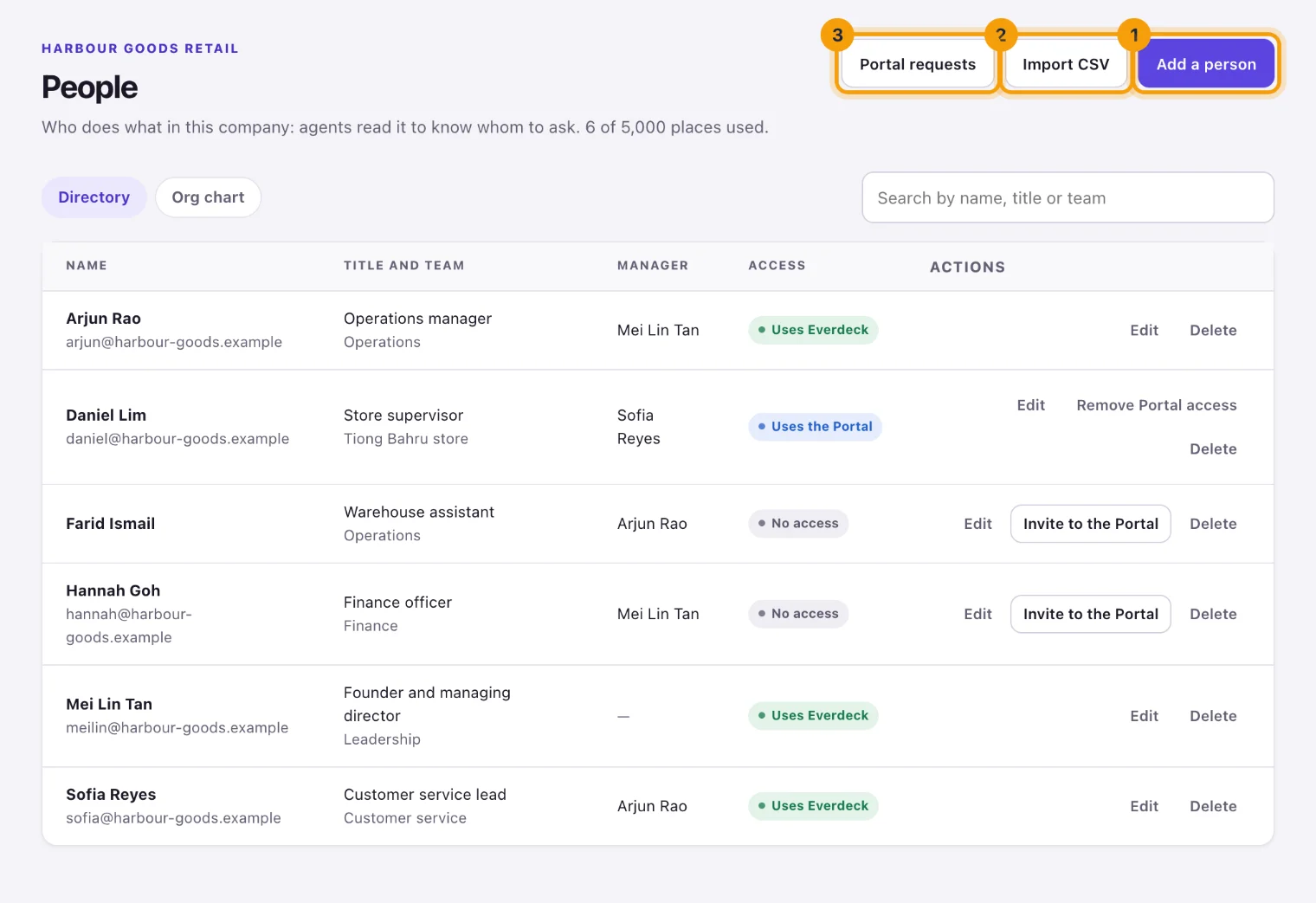
The directory
The Directory tab lists each person with their Title and team, their Manager and their Access:
- Uses Everdeck: they have a console role, like a member or an admin.
- Uses the Portal: they use only the Portal.
- Invited to the Portal: an invitation is waiting for an answer.
- No access: they're in the directory, but don't sign in. Agents still know who they are and what they do.
Someone marked as left shows Left. Type in Search by name, title or team to find someone. The page's description says how many of the directory's places are used: a company's directory holds up to 5,000 people, counting those who left. Delete people who left long ago to make room.
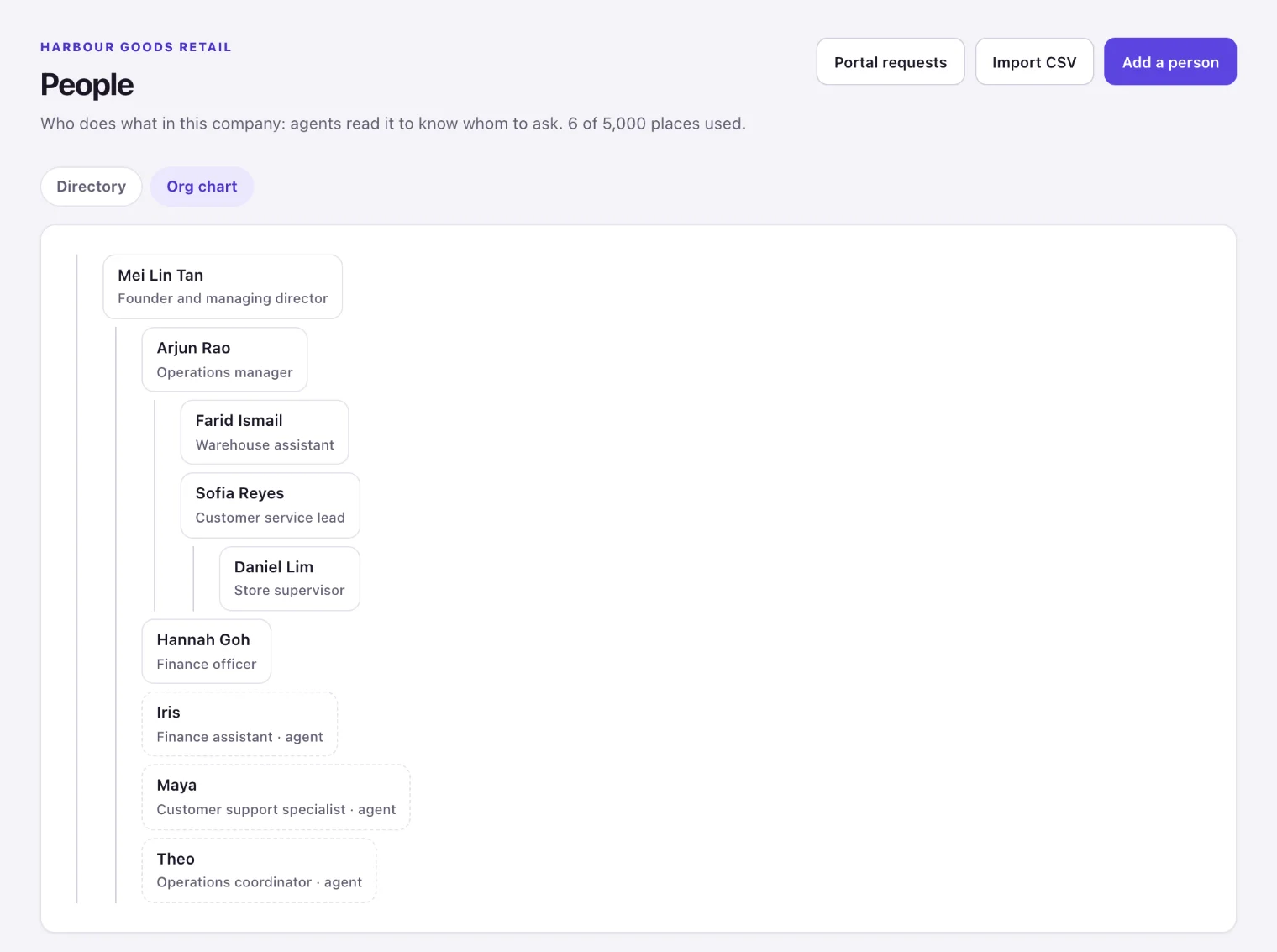
The Org chart tab draws the same people under their managers, with your agents under whoever they report to.
Add a person
- Select Add a person.
- Fill in their Name (the only field you must fill in), Work email, Title, Team, Department, Location, Timezone and Employee ID. Without a work email you can't invite them to the Portal.
- Choose their Manager from the directory, or No manager.
- Under Responsibilities, one per line, write what they look after, up to 20 lines: "Supplier invoices", "Store opening hours". Agents route work by these.
- Leave Working notes empty unless they ask you to fill it in: it's theirs to write in the Portal.
- Select Add.
To change someone, select Edit on their row, change what you need, and select Save.
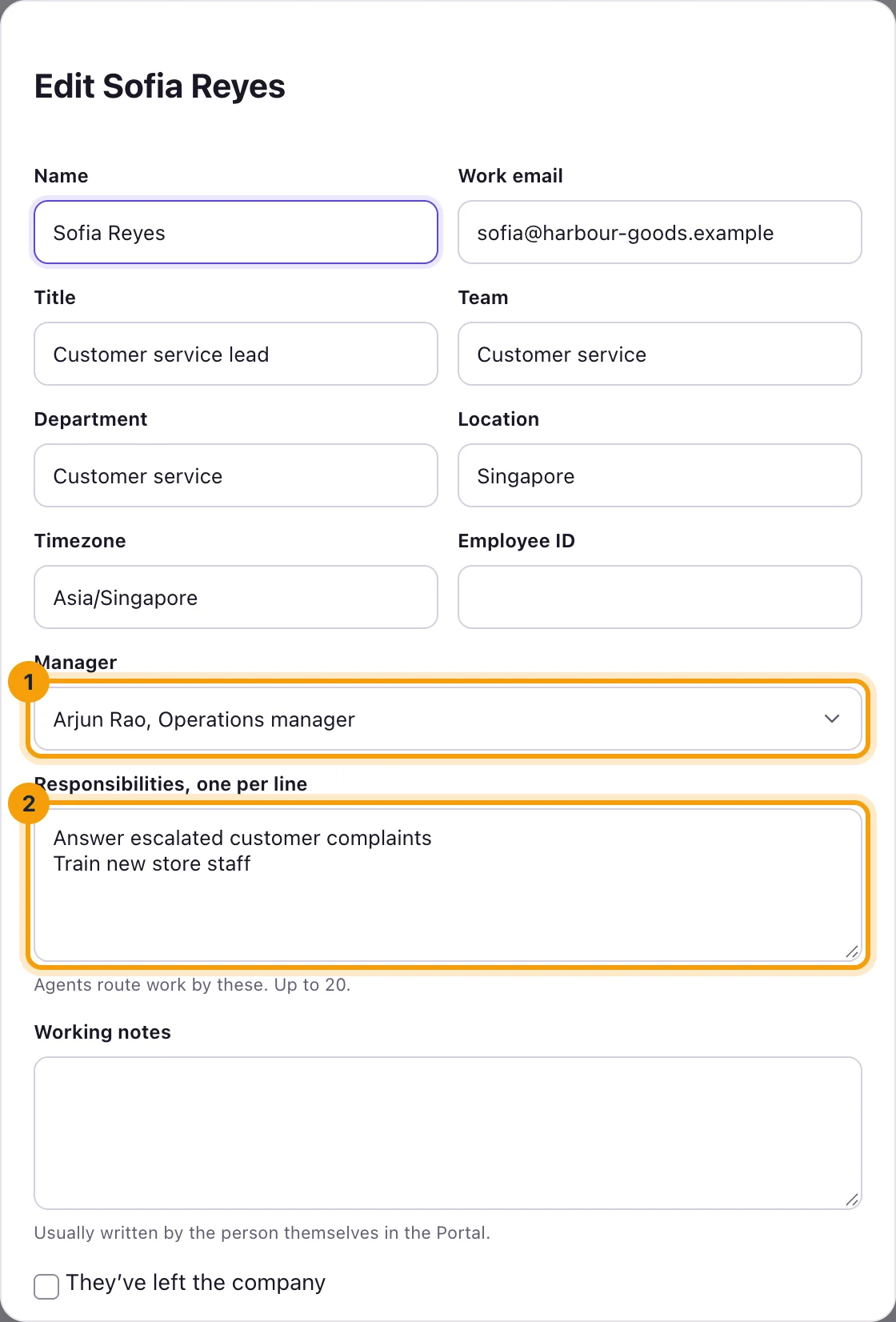
When someone leaves, edit them and tick They’ve left the company. They stay in the history, but agents stop offering them work and they can't be anyone's manager. Delete takes them out of the directory altogether, and asks you to confirm it's you with your second factor.
Import a CSV file
To add or update many people at once, select Import CSV.
- Make a CSV file whose first row names the columns:
name(required),email,title,team,department,location,timezone,responsibilities(separated by semicolons),manager_emailandemployee_id. - Choose it under File and select Preview. Nothing changes yet: Everdeck says how many people are new, updated and unchanged, and lists any rows to fix, such as a manager who isn't in the file or the directory, or two people who would report to each other.
- Fix those rows in the file and preview it again. When nothing is left to fix, select Import.
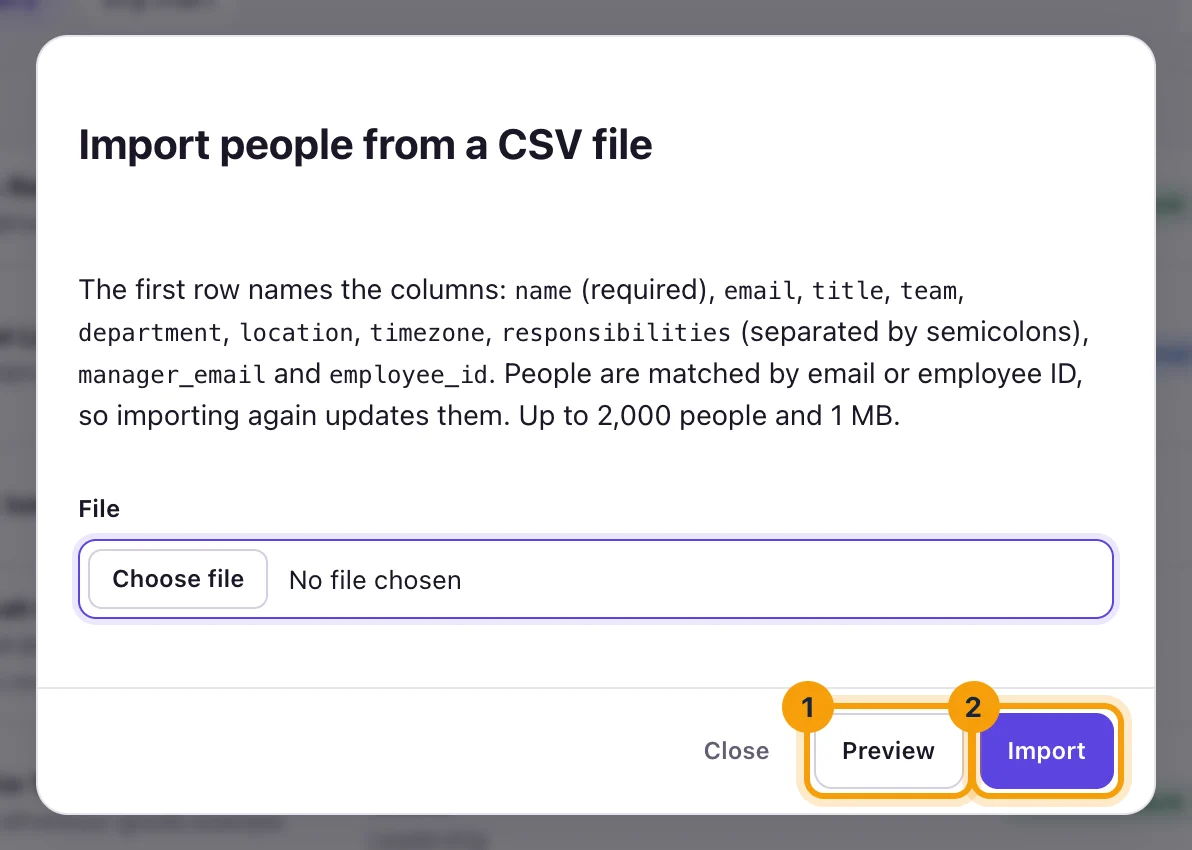
People are matched by email or employee ID, so importing the same file again updates them instead of
adding them twice. Managers are found by manager_email. One file can hold up to 2,000 people. Importing doesn't invite anyone to the Portal.
Managers and responsibilities
Agents use the directory to decide who should get a piece of work, and whom to ask:
- An agent that reports to a person knows its manager chain: that person and up to two managers above them, with their titles, responsibilities and working notes.
- It knows the people who asked it for work in the last 30 days.
- It can search the directory by name, title, team or responsibility, and read one person's details, including their work email. People who left aren't found.
- An approval rule step that goes to The requester’s manager follows the directory's Manager when the requester is a person.
Keep titles, teams, managers and responsibilities up to date: these stay with admins, because agents route work by them. People in the Portal change only their own working notes, location and timezone.
Invite someone to the Portal
The Portal is where employees work with your agents without a console role. To invite someone:
- Make sure their row has a work email.
- Select Invite to the Portal on their row.
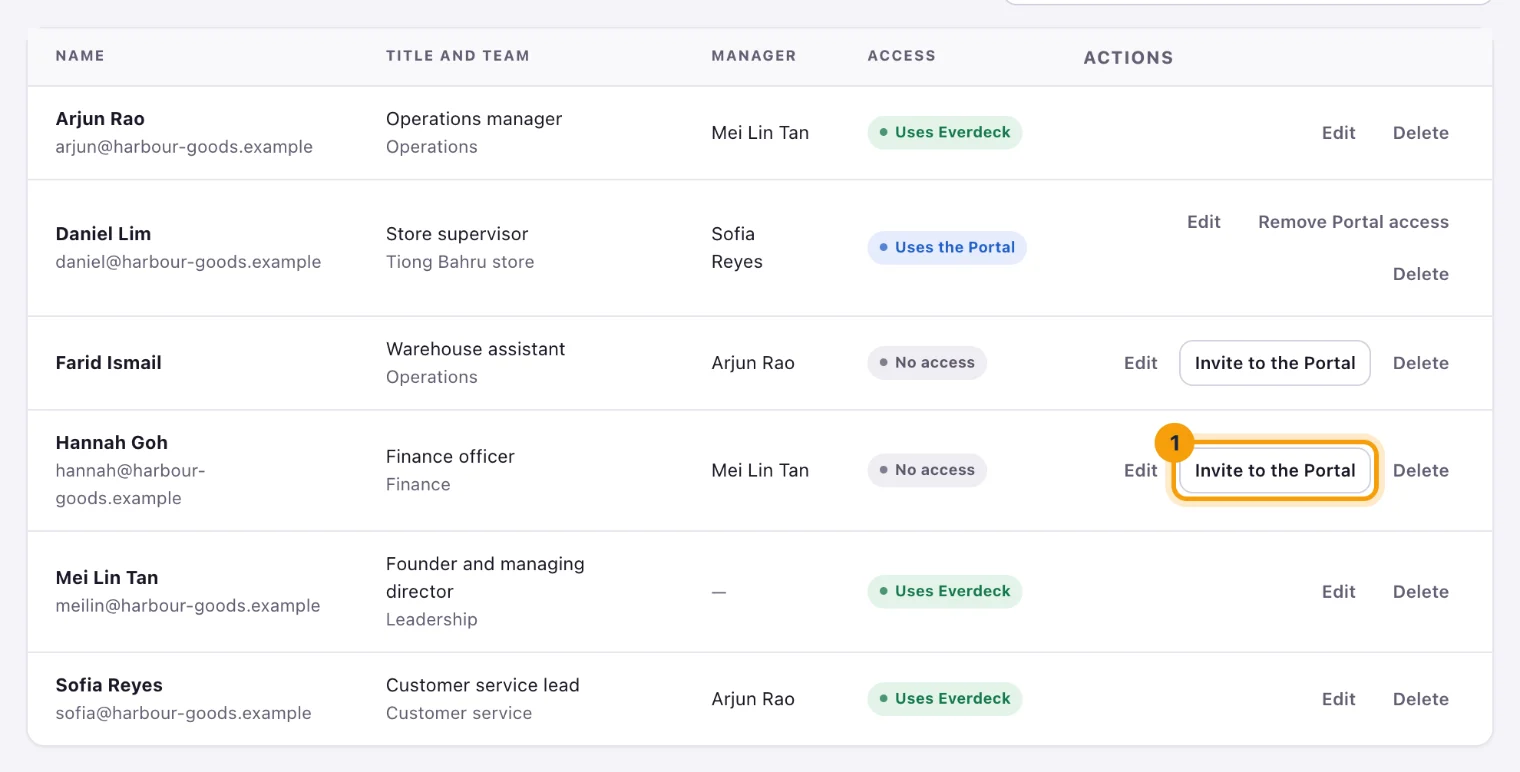
They get an email with a link that works once and lasts 7 days. They create a login, with two-factor authentication like everyone, and the Portal opens for them. Their access shows as Invited to the Portal until they accept. If the email went astray, select Send invitation again.
Someone who is already in the account, in another company or with a console role elsewhere, doesn't need an invitation: they can use the Portal here at once.
Remove Portal access takes it away, or withdraws an invitation still open. Their open tasks here go back to whoever asked for them, or are left unassigned when that person or agent can't take them. If this was the only company they could open, they leave the account.
Portal people and seats
Portal access is free: people who use only the Portal don't take a seat on your plan. An account can have up to 1,000 Portal people, counting invitations still open, on every plan. The Members page lists only the people who use the console, and says how many use the Portal.
To let a Portal person use the console too, an account owner or admin selects Give console access on their row and Give access to confirm. They become a member of the account and take a seat, so your plan needs a free one. Then give them a role in the company on the Members page. See Companies, members and roles.
Choose what people can ask for
Select Portal requests to choose what employees can ask for in the Portal and which agent takes each kind of request.
- Choose the Front-desk agent. It takes anything that isn't one of your kinds of request. With Nobody (requests aren’t taken), the Portal takes no requests.
- Select Add a kind of request for each thing people often ask for, like "Book a delivery van". Give it a name and a sentence on what it's for, and choose the agent that takes it, or The front desk.
- Untick Offered to stop offering a kind for now, or select Remove to take it away.
- Select Save.
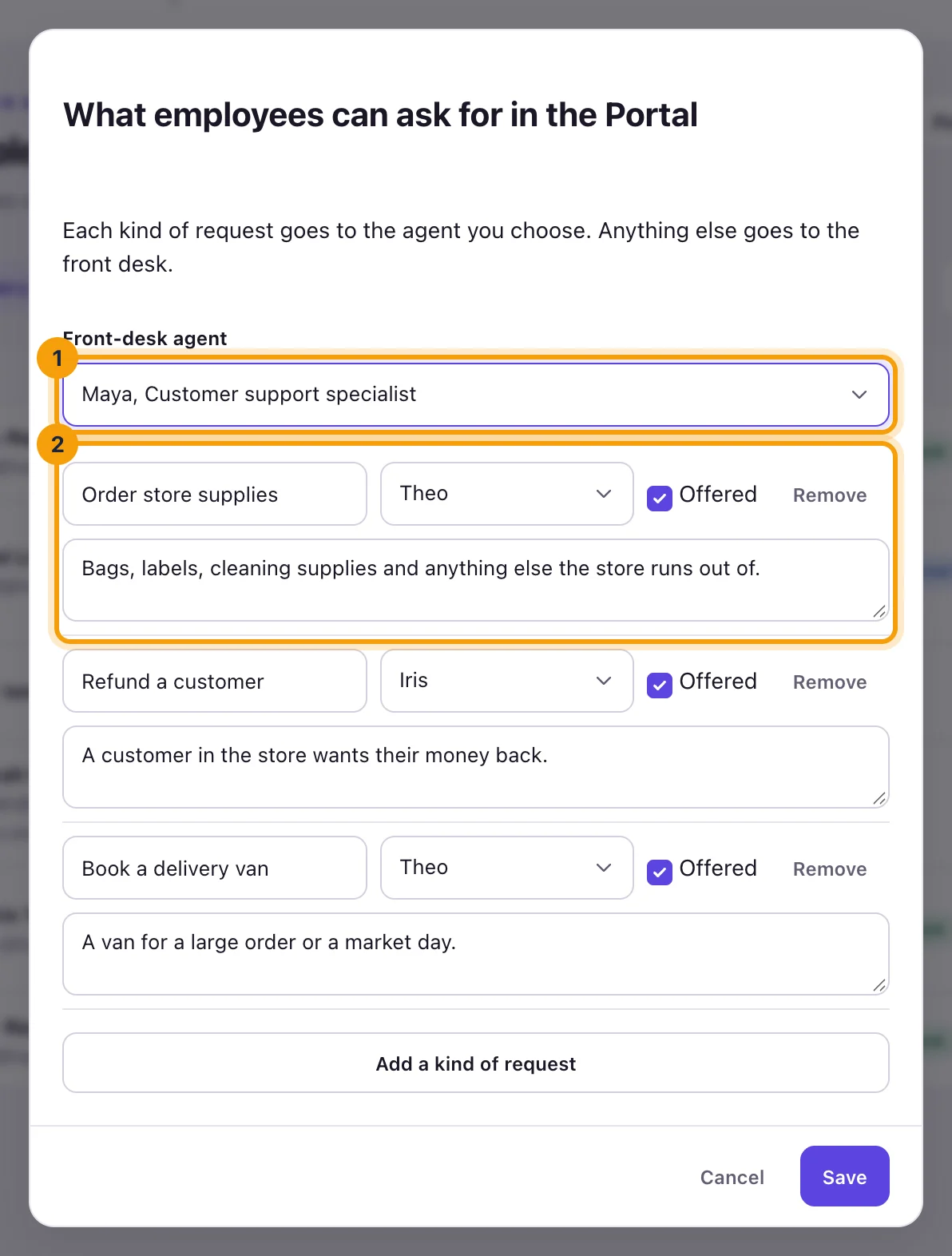
A request made in the Portal becomes a task, with the employee as the person who asked for it, assigned to the agent you chose. The employee follows it, and talks with the agent about it, in the Portal.
What next
See what your employees see in Using the Portal, and give the agents who take their requests clear charters in Agents.
Still stuck?
Email [email protected] and say what you were trying to do. Or browse every guide.