Playbooks
Write a procedure once, and have agents follow it step by step, with a person reviewing the steps you choose.
A playbook is a written procedure: up to 30 steps an agent works through in order, such as onboarding a client, closing the month or answering a refund request. You choose where a person checks the work before the agent moves on.
Everyone in the console can read playbooks. Company admins and managers write and change them.
Write a playbook
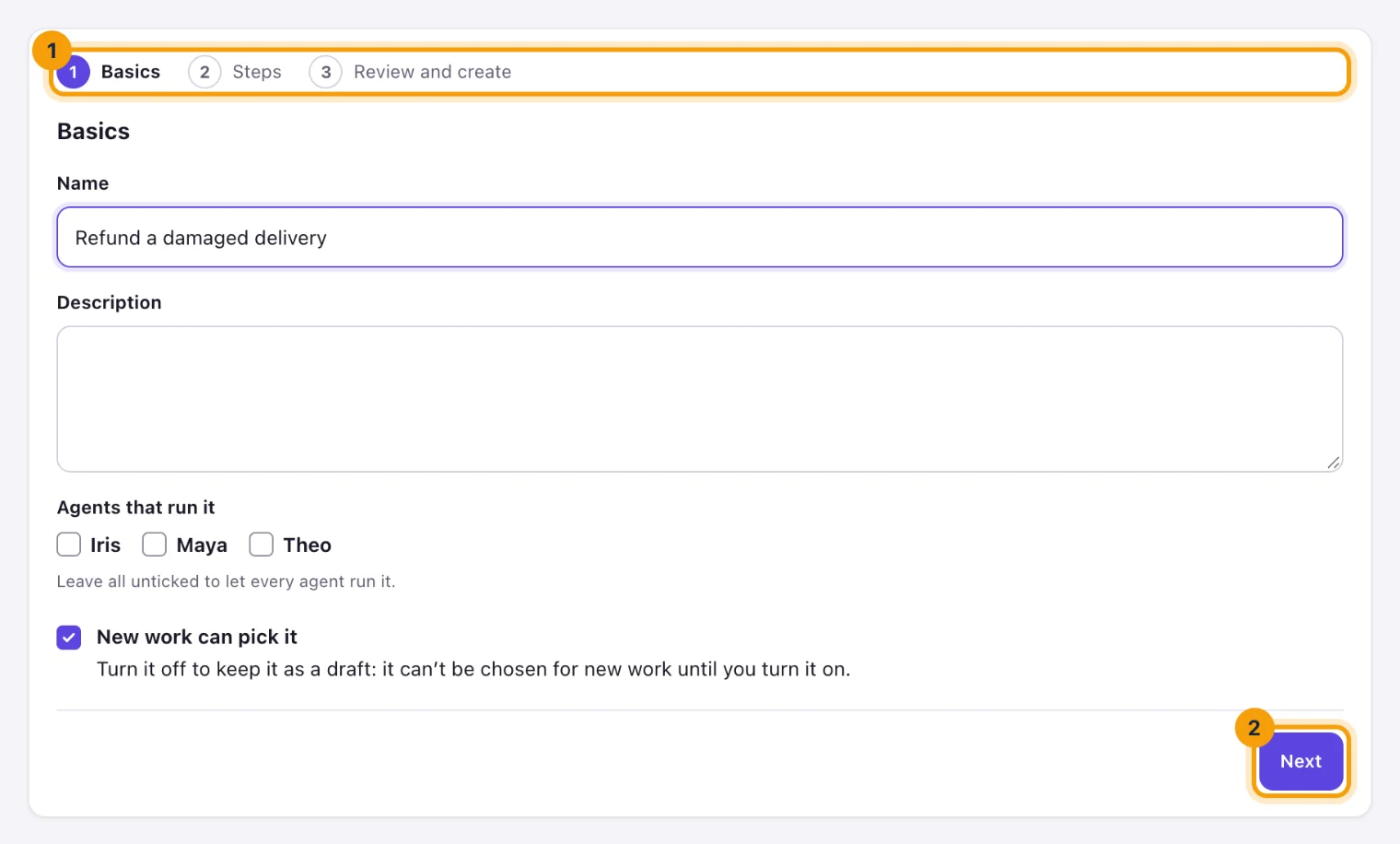
Open Playbooks and select New playbook. A new playbook is made in three steps, numbered at the top of the page. Next checks each step before moving on, and Back keeps what you typed.
-
Basics:
- Give it a Name and, if it helps, a Description.
- Under Agents that run it, tick the agents that may use it, or leave them all unticked for every agent.
- Leave New work can pick it ticked, or untick it to keep the playbook as a draft that can't be chosen for new work until you turn it on.
Select Next.
-
Steps: for each step, write a title and its Instructions: what the agent does, in plain words, up to 4,000 characters. Markdown works.
- Optionally, say when the step is finished under Done when, choose a Checkpoint, and list Allowed tools.
- Select Add step for the next one, and use Move up, Move down and Remove to put the steps in order.
Every step needs a title and instructions before you can go on. Select Next.
-
Review and create: check the summary. Change basics and Change steps take you back to that step. Select Create playbook, and the playbook opens.
Reloading the page keeps you on the same step, but loses what you typed. If Everdeck refuses something when you create the playbook, such as a tool name it doesn't know, it opens the step that holds it.
Checkpoints
Each step has one of these:
- None: the agent carries on with the next step as soon as it says this one is done.
- A person reviews: the agent sends what it did for review, and waits. Whoever asked for the task is asked first, then a manager.
- Approval (tier 4): the same, decided as a tier 4 approval: always a person, in the app.
Reviews appear in Approvals like any other request. There you can:
- Approve: the agent moves on to the next step;
- Request changes: the agent redoes the step, with your note;
- Reject: the playbook stops and the task is blocked until a person looks at it.
Your company's approval rules for deliverables decide who reviews, when one matches. Whatever the rule says, a person always decides a checkpoint.
Allowed tools
A step can list the tools the agent may use while it works on it, under Allowed tools, such as
tasks_get, tasks_comment. During that step the agent sees only those tools.
The list only narrows what the agent can do. A tool its charter doesn't grant stays hidden whatever the step says.
Run a playbook
An agent runs a playbook only when its charter grants the “Finish a playbook step” tool. New agents have it; give it to older ones on their Tools tab.
Start a task on a playbook in any of these ways:
- In New task, assign the task to an agent and choose a Playbook.
- On the Playbooks page, under Start new work on a playbook, choose one for a recurring task or a Portal request type. Every task it makes from then on runs that playbook.
The task page shows where the playbook stands: each step, what the agent did in it, and any reviewer's note. When the last step is done, the task goes to its normal review.
If a reviewer rejected a step, select Start again on the task page once you have dealt with it. The agent picks the task up again at that step.
Change a playbook
A saved playbook is one page: change its basics and its steps there, write what you changed under What changed (optional) if you like, and select Save playbook. Each save that changes the steps makes a new version, listed under Versions, with your note. Tasks already running the playbook keep the version they started with; new tasks get the new one.
Changing only the name, description, agents or on/off doesn't make a new version.
Delete playbook asks you to confirm, then stops new work from starting on it: recurring tasks and Portal request types that named it stop using it. Tasks running it finish on their version.
What next
Still stuck?
Email [email protected] and say what you were trying to do. Or browse every guide.