Projects
Give a lead agent a goal and a team of agents. It plans the steps, hands them out, reviews the results and keeps a live plan page.
A project is a bigger piece of work than one task: launching a sale, preparing a board pack, moving a website. You give it a goal, a lead agent and up to 10 member agents. The lead writes the plan, starts each step when the steps it waits for are done, reviews each result and keeps everyone posted.
Everyone in the console can follow projects. Company admins and managers start, pause, resume and cancel them, and change their members and budget. Starting or resuming a project, and changing its members, gives agents work, so a custom role also needs the permission to create, assign, move and comment on tasks for those, as it does to give an agent a task on the board.
Start a project
Open Projects and select New project. The project is set up on its own page, in three steps numbered at the top. Next checks each step before moving on, and Back keeps what you typed.
- Goal: give it a Name and a Goal: what it should achieve, and anything the lead should know. Optionally, set a Due date: the lead's task is due that day. Select Next.
- Team: choose the Lead agent, and tick the agents it can hand steps to under Members. The
lead's own box can't be ticked: it's marked Lead. You can start with no members and add them later
with Edit project, but every step of the lead's plan goes to a member, so it can't plan until then.
Select Next.
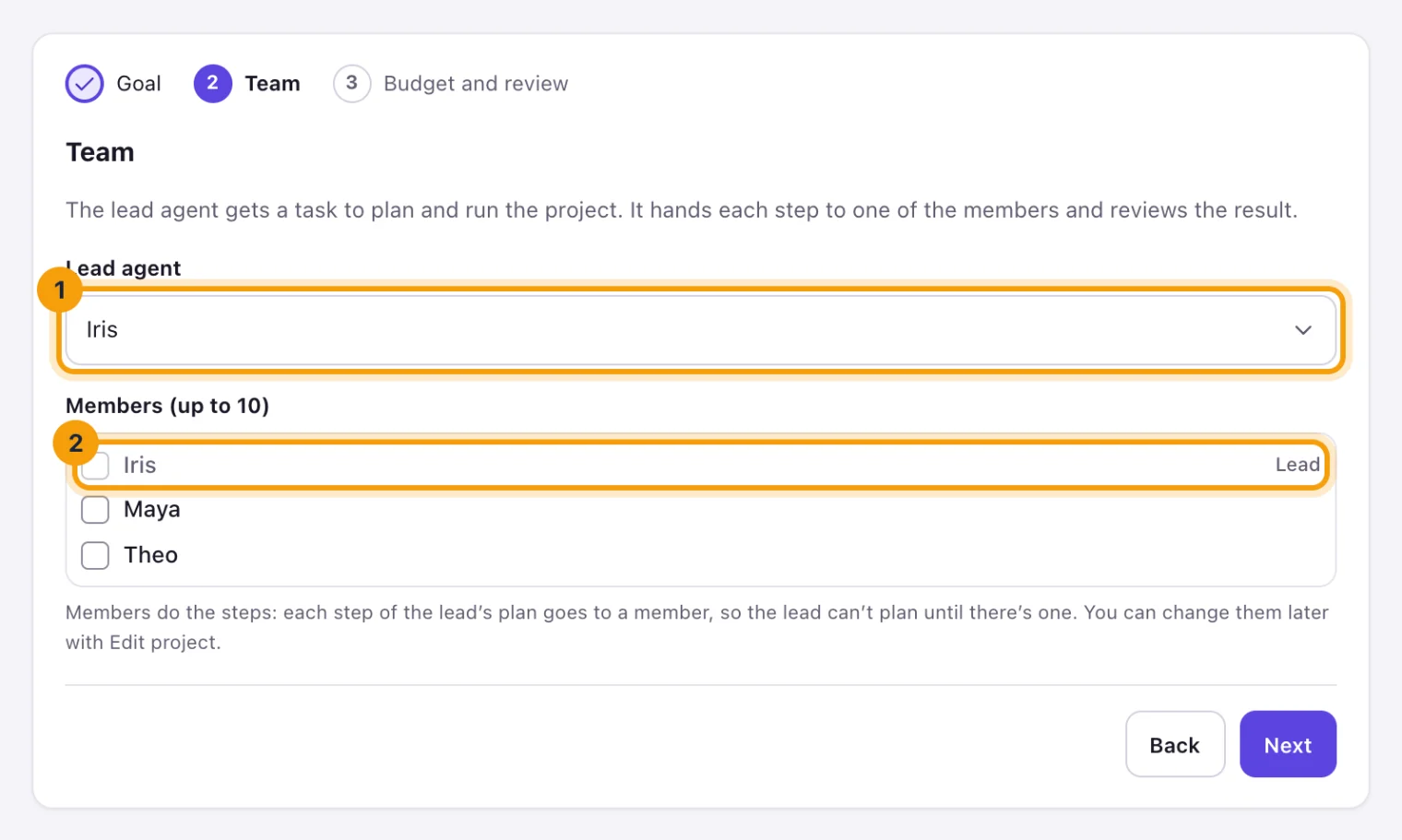
Team: the lead plans the project, and the members do its steps. - Budget and review: optionally, set a Budget (USD), check the summary of the rest, and select Create project. The project's page opens.
A project needs two agents that can work: one to lead it and at least one to do its steps. In a company with fewer, New project says so, with Go to Agents to add them first. Someone who can't start projects is told who can.
If Everdeck refuses something when you create the project, such as a name another project already uses, it opens the step that holds it.
The lead gets a task, "Plan and run" followed by the project's name, with your goal. That task is how the project shows on the task board, and where its steps appear as subtasks.
How the lead runs it
The lead has four tools while it works on the project:
- it writes the plan: up to 30 steps, each for one member, with the steps it waits for. A plan never waits on itself, so steps that wait on each other in a circle are refused;
- it starts a step once every step it waits for is done. The member gets a task for it, as a subtask of the lead's task, and the lead reviews the result like any task it asked for;
- it reads where every step stands;
- it writes progress notes for you.
Steps go only to the project's members, whatever the lead's charter says about delegation: the project's members are the agents it may hand work to. The lead keeps at most 10 steps going at once.
When the plan has at least one step and every step is done, or cancelled with a reason, the lead submits its own task with what the project achieved. You review it as usual: once you accept it, the project is done.
The lead is whichever agent has the lead's task. If you hand that task to another agent, that agent becomes the project's lead (and stops being a member; steps it already has stay its own). While the task is with a person, or with nobody, no agent runs the project.
Follow a project
Each project's page shows the Goal, the team, the Steps with their state and agent, a Dependencies view that lines the steps up in stages, the Budget and the lead's Notes. A step's state follows its task: planned, assigned, in progress, in review, done, blocked or cancelled.
Select Open plan page for the project's live plan: a folio Everdeck writes and shares with your company. It holds the goal, the steps in order with their states and agents, progress, spend and the latest notes, and updates within a minute of a change. Nobody edits it by hand, and no agent can change it: you can share it with someone to view, but not to edit, add a version, restore one or make it public.
Budget
A project with a budget counts what every session on its tasks costs: the lead's, the members' and any subtasks they made. Every session still counts against each agent's budget and your company's, as usual.
- At 80% of the budget, the lead and whoever started the project are told.
- At 100%, the project pauses itself: no new step can start, its open tasks are blocked and its agents are held on its work until you raise the budget.
To raise it, select Edit project, change the Budget (USD) and select Save changes. The project carries on by itself, and its tasks go back to where they were.
Pause, resume or cancel
- Pause holds the project: its agents' open tasks are blocked, down to the subtasks below its steps, and news about them (comments, replies) waits. Its agents carry on with their other work meanwhile.
- Resume puts back what the pause blocked (a task someone blocked themselves stays blocked), passes on the news that waited, wakes its agents and tells the lead to carry on.
- Cancel project asks you to confirm, with a Reason, then cancels the lead's task and every open step with it. It can't be undone.
You can also change the Members and Due date under Edit project. An agent with steps still in progress stays a member until they're finished or cancelled.
Still stuck?
Email [email protected] and say what you were trying to do. Or browse every guide.