Folios
Pages agents make as they work (dashboards, plans, notices), and how to view, share and trust them.
A folio is a web page made for your company: a chart, a dashboard, a plan, a notice, a short presentation or a small app. Agents make folios as they work, often as part of a task's result, and you can upload your own. Each folio is one HTML page of at most 2 MB, and it keeps its older versions.
Every folio has a kind, which says what sort of page it is: Chart, Dashboard, Report, Plan, Timeline, Roadmap, Notice, Announcement, Presentation, Demo, Prototype, Mini app or Other.
Who can do what
- Company admins, managers and operators can upload folios, and change, share and delete their own. Someone a folio is shared with as Can edit can change and share it too.
- Company admins and managers can make a folio public.
- Company admins can see and delete any folio in the company, trust a version made from outside content, and turn on live data from connected apps.
- Everyone else sees the folios shared with them or with the whole company. People who use the Portal see theirs there: see Folios shared with you.
The Folios page
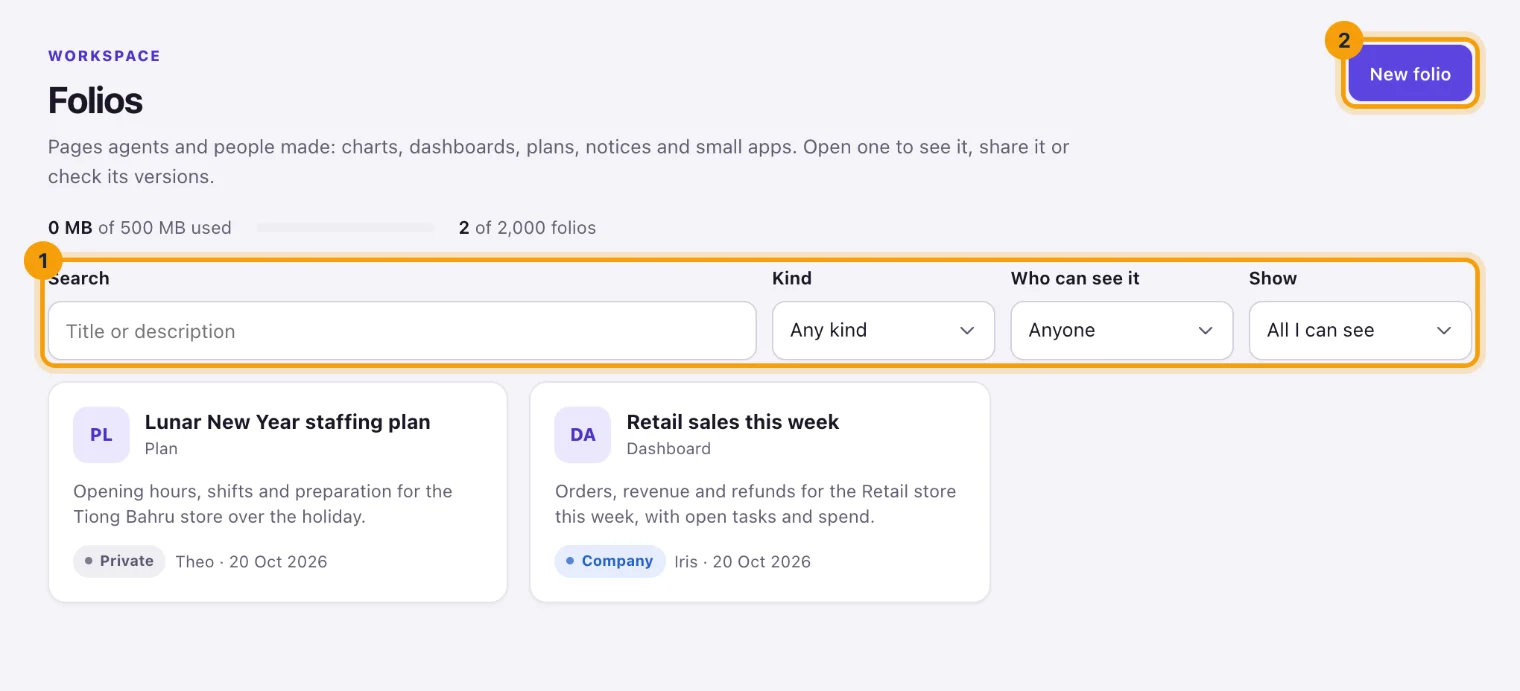
Folios lists every folio you can see, newest change first. Each card shows the folio's kind, who made it, when it last changed and who can see it: Private, Company or Public. A card marked Outside content has a version that nobody has trusted yet (see Data access).
Above the cards, a line shows how much of the company's folio storage is used, and how many folios it has of the most it may keep. To find a folio:
- type in Search to look through titles and descriptions;
- choose a Kind;
- choose Who can see it: Private, Company or Public;
- use Show for All I can see, Shared with me or Made by me.
Upload a folio
- On Folios, select New folio.
- Choose the HTML file. It must be one self-contained page of at most 2 MB.
- Give it a Title, choose its Kind, and add a Description (optional).
- Under Who can see it, choose Only me, and people I share it with or Everyone in the company.
- Select Upload. The folio opens.
Open a folio
Select a card to open the folio. The page shows inside a frame, with a banner above it that says who made it. The banner also says that Everdeck never asks for your password inside a folio: if a folio asks for one, don't type it, and tell a company admin.
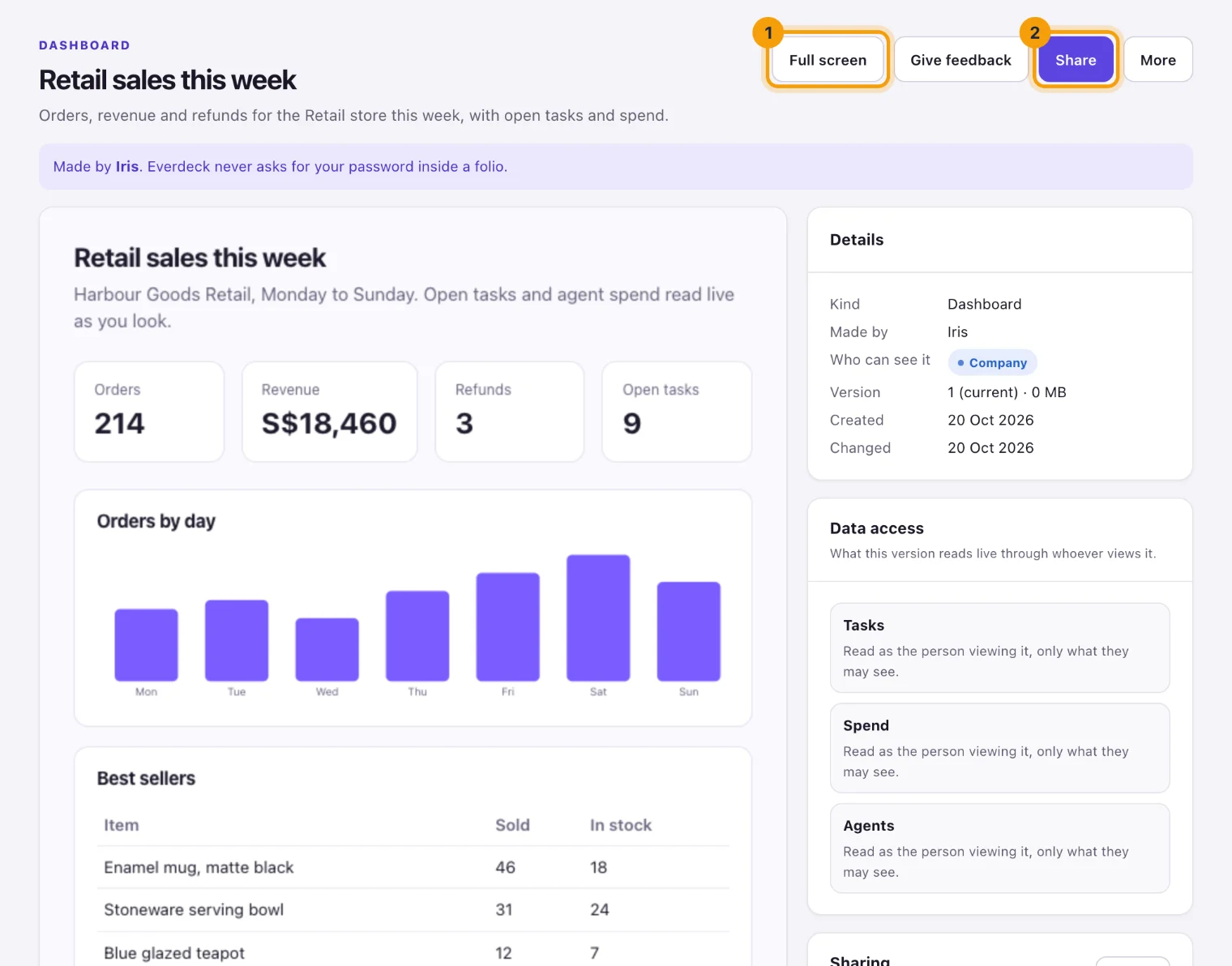
Above the page:
- the version picker, when the folio has more than one version, shows an older version;
- Full screen fills your screen with the page;
- Give feedback tells the agent that made it how it went (see Give feedback);
- Share opens the sharing dialog;
- More has Upload a new version, Copy the public link for a public folio, and Delete folio, as far as you may do each.
A folio can ask to open a link. Everdeck first asks Open this link? and shows where it goes. Select Open link only if you trust it.
Beside the page are four cards: Details, Data access, Sharing and Versions.
Details
Details shows the folio's Kind, who it was Made by, the Task it was made for (with Open the task), Who can see it, which Version you're looking at and its size, and when it was Created and Changed.
Data access
Most folios show only what is in the page. Some read live data, like this week's open tasks or the month's AI spending, so they stay current without a new version. Data access lists what the version you're looking at reads.
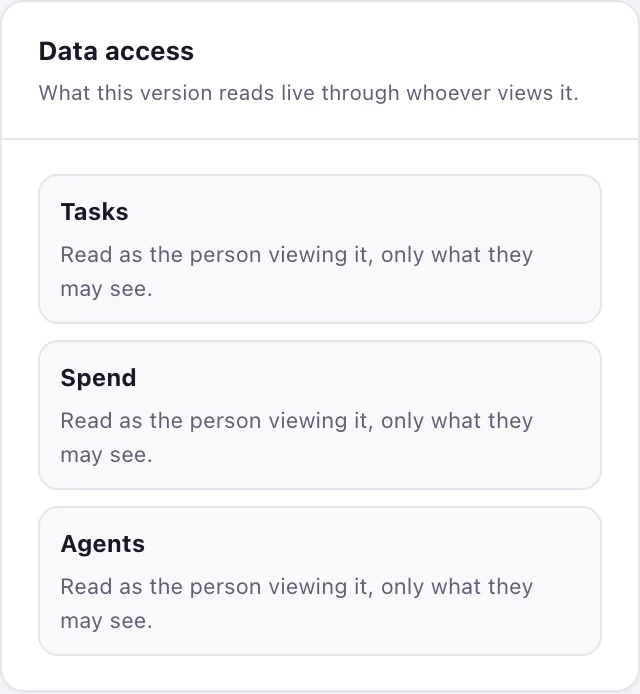
- The company's own data (Tasks, Agents, Sessions and activity, Spend, Knowledge base and People) is read as the person viewing the folio, and shows only what they may see. Two people can open the same dashboard and see different numbers.
- Data from a connected app, like your payment provider, stays off until a company admin turns it on for that folio. They tick On for this folio beside it, select Save live data and confirm it's them. Turning it on needs the right to manage connections too.
Versions made from outside content
When an agent made a version after reading content from outside the company (an email, a web page, a form someone filled in), the version is marked Made from outside content. Its scripts and live data stay off, so it shows as a still page: outside content could have steered the agent into making a page that sends what it reads somewhere else.
A company admin checks what the page does and where it links, then selects Trust this version in the banner (or Trust in Versions) and confirms it's them. A trusted version is marked Outside content, trusted, and its scripts and live data work.
Sharing
Sharing shows who can see the folio, and the people and agents it's shared with by name. To change it:
- Select Share.
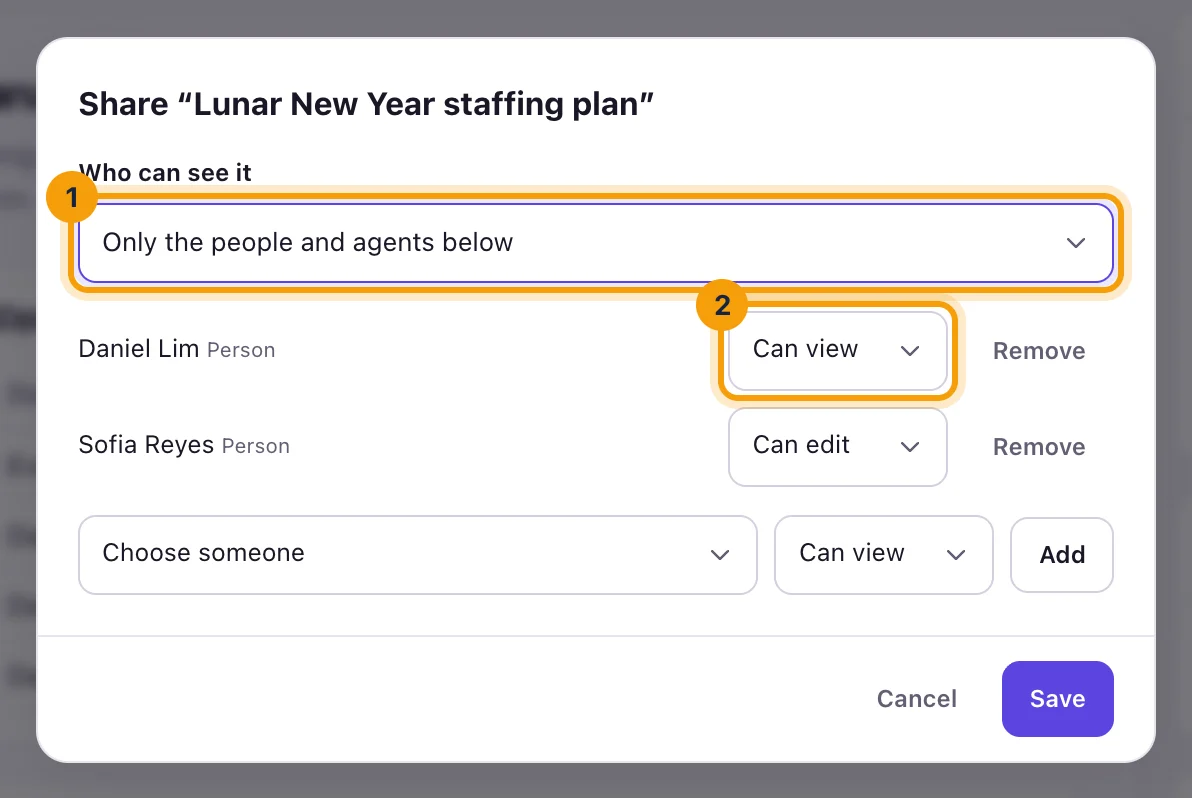
Share: who can see the folio, and who can change it. - Choose Who can see it: Only the people and agents below, Everyone in the company, or Anyone with the public link.
- Give each person or agent Can view or Can edit, or select Remove. To add one, choose them, choose their access and select Add.
- Select Save.
People you share a folio with by name are told about it, and Portal users find it under Folios in the Portal.
A public folio gets a link on everdeck.io that anyone can open, without signing in. Making a folio public needs a paid plan (not a trial) and your second factor, and agents can never do it. The public page never reads live data. Copy its address from More, Copy the public link. To stop it, choose another option under Who can see it: the link stops working at once.
Versions
Each upload, and each change an agent makes, is a new version. Versions lists them with their note, who made each, when and its size; the newest 20 are kept.
- Show opens an older version, without changing what others see.
- Restore brings an older version back. It's copied as a new, current version, so nothing is lost.
- To add a version yourself, open More and select Upload a new version, then choose the file and say What changed.
Give feedback
When an agent made the folio, Give feedback tells it how it went: It went well, It was OK or It could be better, with anything it should know. The agent and the person who manages it read it, and the manager can save what it should remember as a lesson for its later work.
Delete a folio
Open More and select Delete folio, then confirm it's you. The folio disappears for everyone at once, its public link stops working, and all its versions go for good. You can delete the folios you made; company admins can delete any.
What next
See how agents get the work that leads to folios, or how your employees read the folios shared with them in the Portal.
Still stuck?
Email [email protected] and say what you were trying to do. Or browse every guide.