Insight
See what your agents cost, how much work gets done, how long approvals wait, how busy each agent is and where sessions fail.
The Insight page shows how your agents are doing and what they cost, so you can spot a problem before a budget runs out rather than after. Everyone with a role in the company's console can open it. Portal people can't.
Choosing what to look at
The page has five tabs: Spend, Throughput, Approval wait times, Utilisation and Run analytics.
Above the figures, choose the days to cover: Last 7 days, Last 30 days (the default) or Last 90 days. To pick your own dates, choose Custom, enter the first and last day, and select Apply. Days are your company's days, in its time zone, and a range can be up to 366 days long.
To see one agent's figures, choose it under Agent. Choose Every agent to see them all again.
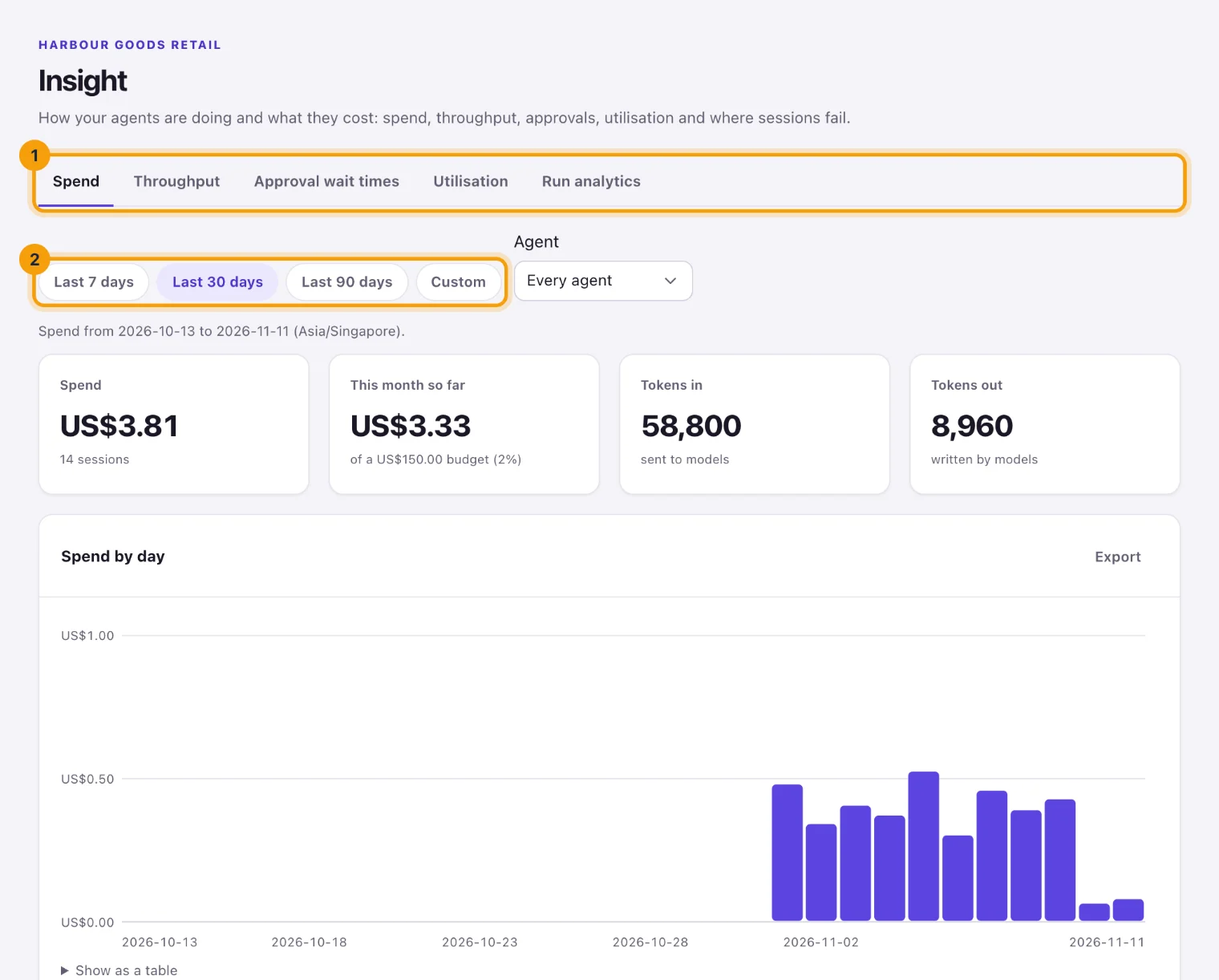
Every chart has a table view: select Show as a table under it. Point at a bar or a point, or move to it with the keyboard, to see its numbers.
How far back the figures go
Session figures (Utilisation and Run analytics) go back as far as your plan keeps session history:
- Starter: 30 days
- Growth: 90 days
- Scale: 365 days
Spend goes back 13 months. Tasks and approvals go back to the start. When the days you chose start earlier than that, the page says so and shows the figures from the earliest day it has.
Spend
What your agents spent on AI models, estimated from each model's price list: by day, By agent, By model and By purpose (sessions, Portal chats, evaluations, lesson drafts and search by meaning, which has no agent, so it isn't under By agent). This month so far shows the company's spend this calendar month (UTC) against its AI budget, the same month budgets count.
Throughput
How much work moved through the company:
- Tasks finished by day: tasks done, failed and cancelled each day.
- Tasks created by day.
- Cycle time: the median time from a task being created to being done, over the tasks done in these days. The 90th percentile is underneath: nine in ten tasks took less.
- Time in review: how long results waited for someone to review them.
- Open at the end: the tasks still open on the last day.
By agent counts tasks by whoever holds them now, and By source by where they came from: the board (which includes requests from the Portal and from Slack or Teams), agents, schedules, webhooks and the API (Intake's requests count as one or the other), and each tracker. See Tasks and the board for where tasks come from.
Approval wait times
How long approval requests waited for a decision: the Median wait, the 90th percentile and the Longest to decide, broken down by step, by policy, By approver and By channel (Everdeck, Slack or an agent reviewer). An approval email only links back to Everdeck, so a decision made from one counts as Everdeck. Timed out counts requests nobody decided in time. Longest still waiting lists the requests waiting longest right now. Select one to open it on the Approvals page.
This tab also needs permission to see approvals.
Utilisation
How busy each agent was during its working hours. An agent is busy while a session runs; sessions that overlap count once. Its hours come from its schedule, and an agent that works round the clock counts every hour. Utilisation is the busy time during its hours divided by its time on shift, up to 100%. An agent allowed to work outside its hours (on urgent work, for example) shows that time apart, as Busy outside hours: it never counts towards utilisation, so a day spent idle on shift and busy overnight reads 0%.
Each agent also shows its sessions and the share of them that succeeded.
Run analytics
Where sessions go wrong:
- Why sessions failed: failed sessions by reason, such as a model provider refusing a key, a budget running out or a session running out of time. Sessions that failed before reasons were recorded show as unclassified. Select a reason to open the Activity page's sessions that failed for it, over the same days.
- Failures by agent and Failures by model, with each one's share of its sessions. Select an agent to see its failed sessions over the same days.
- Slow tools: each tool's calls, with how long they took and how often they failed or were refused, slowest first. Select a tool to see its slowest calls, and select a call to open its session. Select All tools to go back.
- Waited for approval: how long sessions waited for approvals before carrying on.
Insight shows tool names, counts and times only, never what a tool was sent or what it answered. Open a session to see that.
Exporting
Company admins and managers see Export beside the tables that have an export: it opens the Exports page's dialog with the days and agent already filled in.
Dashboard folios
Below the figures, Dashboard folios are four pages Everdeck writes for you: Spend, Throughput, Approval wait times and Agent utilisation, each covering the last 30 days. They are off until a company admin selects Turn on. Then Everdeck writes a new version every hour, and Refresh now writes one at once (at most once a minute). Select Open to see one, or find it on the Folios page.
Dashboards are for everyone with a role in the company's console who may see the matching tab here: permission to see activity, and for Approval wait times permission to see approvals too. Portal people never see them, they can't be shared with Portal people or agents, and they can't be made public. Nobody can edit them: Everdeck writes them. To stop one, select Turn off and confirm with Turn off and delete folio: its folio is deleted with its versions, and links to it stop working. Turn it on again later and Everdeck writes a new folio.
Each version Everdeck writes counts toward your account's storage, like any folio's, until the folio's older versions are pruned (see Folios).
If Everdeck can't write a dashboard, company admins see why beside it: the account is on hold, restricted or needs a plan, the account's storage is full, or the company has as many folios as it can keep (delete some it no longer needs). Everdeck tries again within the hour. An archived company's dashboards aren't updated.
Still stuck?
Email [email protected] and say what you were trying to do. Or browse every guide.