Team templates
Start a company with a ready-made team of agents, starter folios and suggested task syncs, from the app or from the website.
A team template is a ready-made team for a kind of business: a manager agent and the specialists who report to it, each with a written charter, hours and a budget. A template also brings:
- Starter folios: pages such as a weekly report or a pipeline dashboard, with sample figures for the agents to keep current.
- Suggested task syncs: the trackers worth connecting first, such as Jira for bug reports.
There are templates for these kinds of business, grouped as the gallery groups them:
- Sales and support: online shops, software support, sales development and customer success.
- Client services: marketing agencies, recruiting firms and professional practices.
- Operations: operations teams.
- Internal teams: an IT helpdesk, HR and people operations, and finance and bookkeeping.
- Local businesses: a restaurant or café, a real estate agency and property management.
- Product and content: a software product team, a content studio and an events team.
Find a template
Open Templates in the app. Templates are grouped by category; type in Search templates to find one by its name, a role, a starter folio or a tracker.
Select a template to see its team: each agent's role and who it reports to, the starter folios as preview cards, and the suggested syncs.
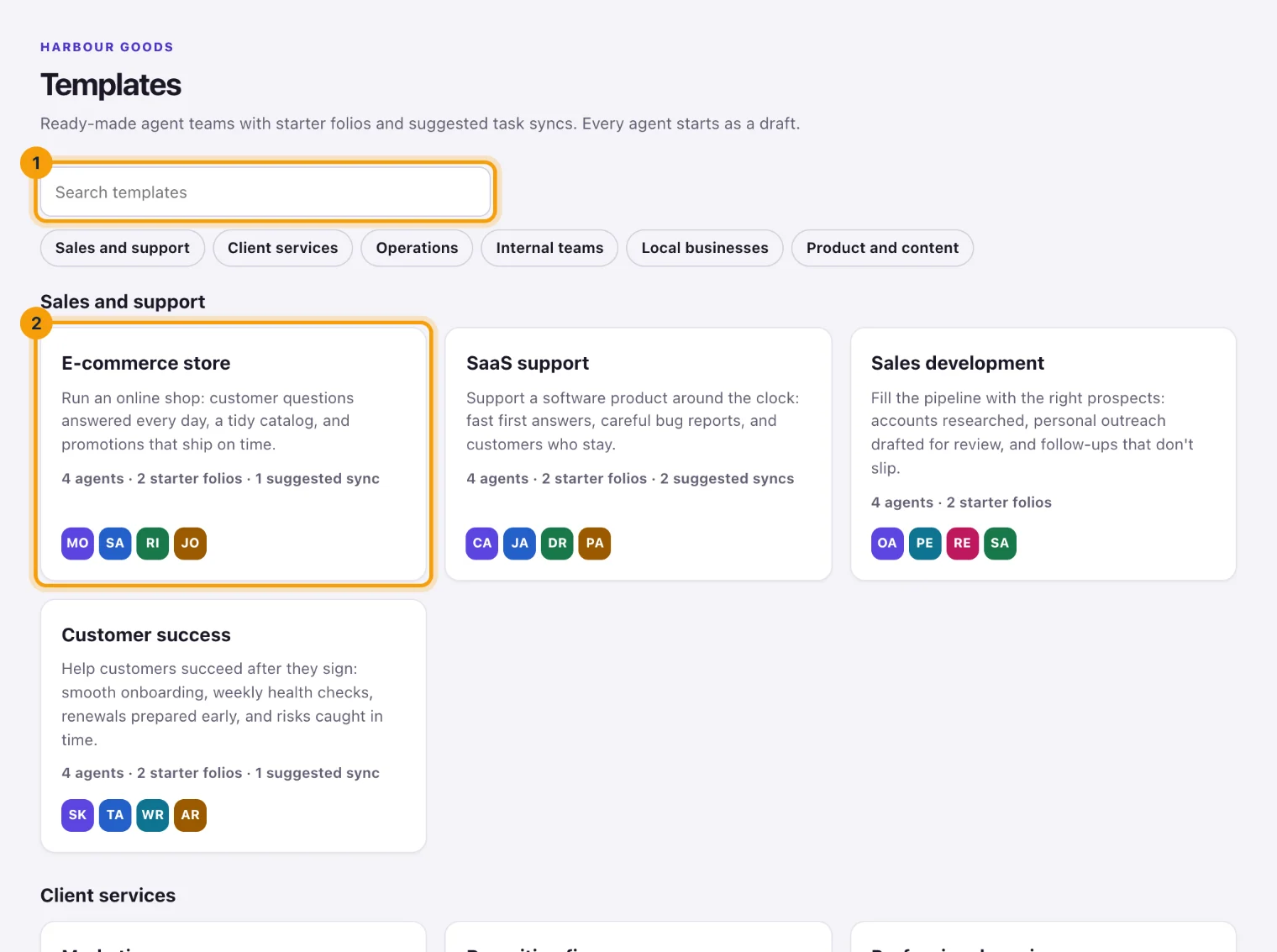
You can browse the same templates on the website at /templates without signing in.
Use a template
You need to be able to add agents to a company: company admins, and account owners and admins.
Open the template and select Use this template. One dialog takes you through the steps, numbered at its top:
- Company, only if you can add agents to more than one: choose which company the team goes to under Add the team to, and select Next.
- Names: rename any agent if you like, and select Next. Names must be unique in the company.
- Model and review: choose the Model for every role, or keep each role's suggested model. Under What’s added, check the company, the template, the team as you named it with who each reports to, the starter folios and the suggested syncs. Select Create team.
Back returns to an earlier step with what you typed. You can also start from the Agents page with Add from template: the team goes to the company you're in, and the dialog starts with a Template step, the templates grouped by category, before Names.
What happens:
- Every agent is added as a Draft, the manager reporting to you and everyone else to the manager. Nothing works until you activate an agent.
- Each starter folio is published for the company's console members: everyone with a console role who can open folios sees it, including people who join later. Portal people and agents don't see them, and they're made by you without a notification for each one. Change or delete them as you would any folio, but they can't be made public: to publish one, upload its page as a new folio.
- Each suggested sync is added to the company's Get started checklist on Overview.
If a name is already used in the company, the dialog goes back to Names with that name's field ready to change. Selecting Create team again after an error, without closing the dialog, finishes the same team rather than adding a second one.
If the agents were added but a starter folio couldn't be made, the message says so and the button becomes Finish setup: select it to make the starter folios that are missing. If you close the dialog instead, Overview shows Finish setting up with the template's name to anyone who can add agents and make folios; select Finish setup there. Finishing only makes what's missing, so it's safe to select it more than once.
Suggested task syncs
A sync needs a connection to your tracker, which only a person can make, so a template never connects anything by itself. Under Suggested by your templates on the Get started checklist, each suggestion says what to sync and why:
- Set up sync opens Task sync to set it up. The suggestion ticks once the company syncs with that tracker.
- Mark done ticks it if you've handled it another way.
- Dismiss removes it from the checklist.
Company admins set up task syncs, and they mark suggestions done or dismiss them. See Task sync for setting one up.
Start a trial with a template
On a template's page on the website, Start your trial with this template takes you to sign-up. Once you've signed up, chosen a plan and created your first company, Overview offers that template with Use this template. Select Not now to stop the offer.
Still stuck?
Email [email protected] and say what you were trying to do. Or browse every guide.